My model came in wrong
Symptom-first fixes for models that arrive the wrong size, floating, untextured or with the wrong zones, plus every rejection message and its remedy.
Start from what you can see. Each symptom below names the cause and the fix; the rejection messages are collected in a table at the end.
Two things to check first.
The status pill on the product card in Vysora Studio tells you which half of this page you need. READY means the model processed cleanly. WARNINGS means it processed and there is something to read — hover the pill for the list. FAILED means it was rejected, and the card shows the reason in place of the usual triangle and size line.
A rejected model shows only what blocked it, not its warnings. Fix the error, upload again, and the diagnostics appear on the successful run.
The model is enormous, or microscopic
Almost always a unit mismatch, and almost always because Auto-detect was left on.
Auto-detect guesses from the model's largest dimension alone: over 800 units it assumes millimetres, over 8 units it assumes centimetres, otherwise metres. It never recognises inches. So:
| What you authored | What auto-detect does | Result |
|---|---|---|
| 400 mm vase, in millimetres | Reads 400 as centimetres | Publishes 4 m tall |
| 9 m table, in metres | Reads 9 as centimetres | Publishes 9 cm across |
| 9 m object, in centimetres | Reads 900 as millimetres | Publishes 0.9 m |
| Anything in inches | Never detected | Wrong by a factor of 2.54 or more |
You may also see one of these:
Model is 900.0 m across — was it exported in millimeters/centimeters?Model is only 0.40 cm across — check export units.This model is 12.40 m at its largest dimension — check the source unit (m / cm / mm / inch).
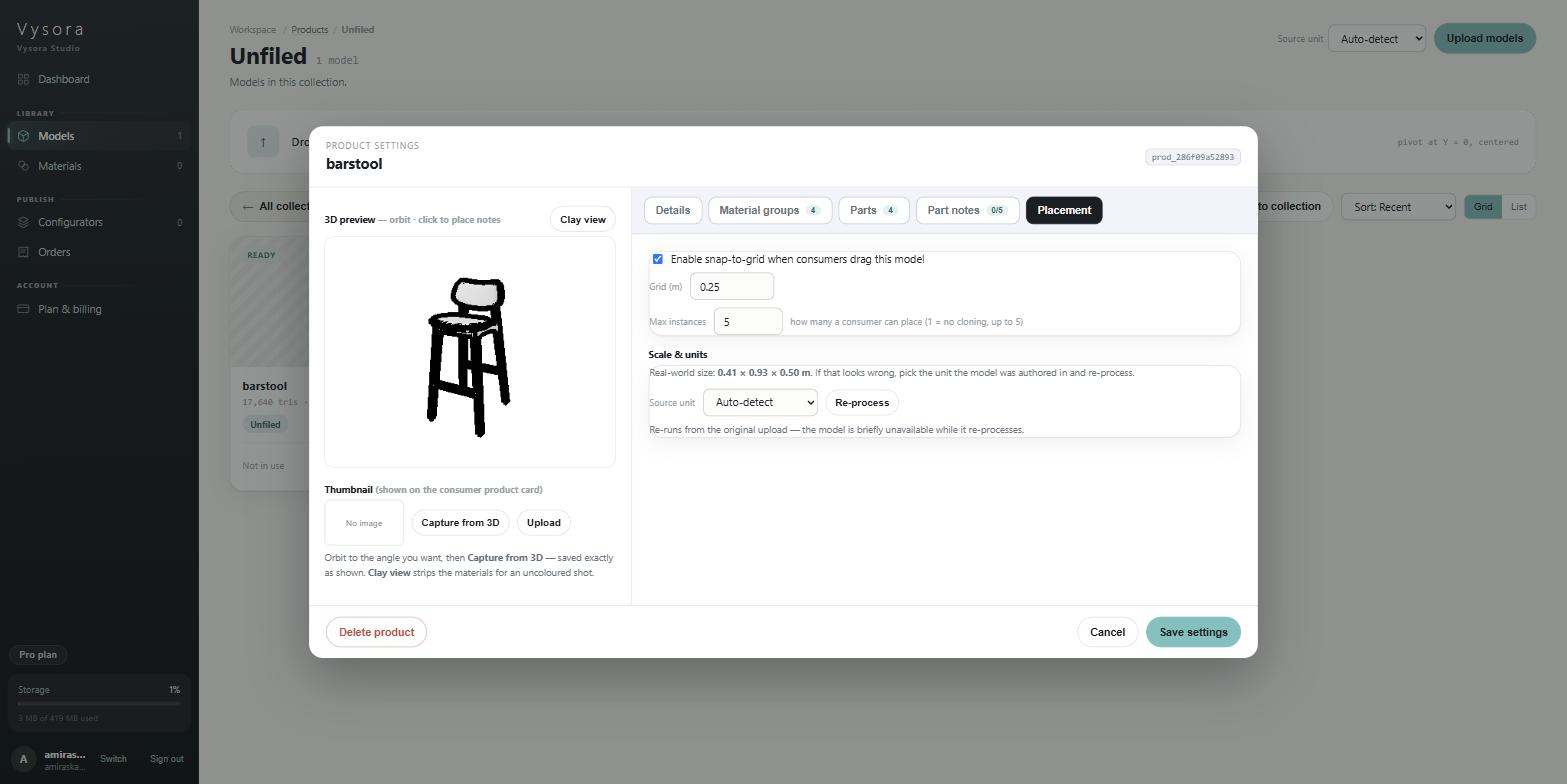
The fix, and it needs no re-export. Open the product's settings, go to the tab with Scale & units, set Source unit to the unit the model was authored in, and press Re-process. It re-runs from your original upload, so corrections never compound. Get it wrong twice and the third attempt is still measured from the source.
Display size is not a size fix
Showroom and Atelier only
A second control, Display size, scales how large the model looks on the set between 25% and 400%. It is a presentation choice on a correct model, not a correction: the measuring tool in the published configurator always reports the real size, whatever you set. If you have pushed it to either end of its range to make the model look right, the model is in the wrong unit. Fix it with Source unit and Re-process instead.
The model floats above the floor, or sinks into it
The pivot was not at the base. You will usually have been told:
Model base is 0.12 m from the floor (pivot not at Y=0) — it would float above the ground. The player auto-grounds it, but export with the pivot at floor level for exact placement.
The player grounds the model, so the customer does not see it hovering. That is a safety net, not a fix. Placement, snapping and camera framing all work from the model's own origin, so an object whose pivot sits in its centre or at a far corner behaves oddly when dragged around a room.
Fix: re-export with the pivot at the centre of the footprint and the base of the geometry at Y = 0. Apply or freeze transforms first, so no stray offset or scale is hiding in the transform.
If the model is authored in millimetres, expect this warning whether or not your pivot is correct — the 5 cm threshold is measured in raw source units too. Declare the unit, re-process, and see whether the warning survives.
There is only one zone
The model has one material, or none.
If it has exactly one, Vysora says so:
This model has one material, so customers can only recolour it as a whole. To offer separate parts (seat, legs, frame), re-export with a separate material per part — Vysora creates a configurable zone for each one automatically.
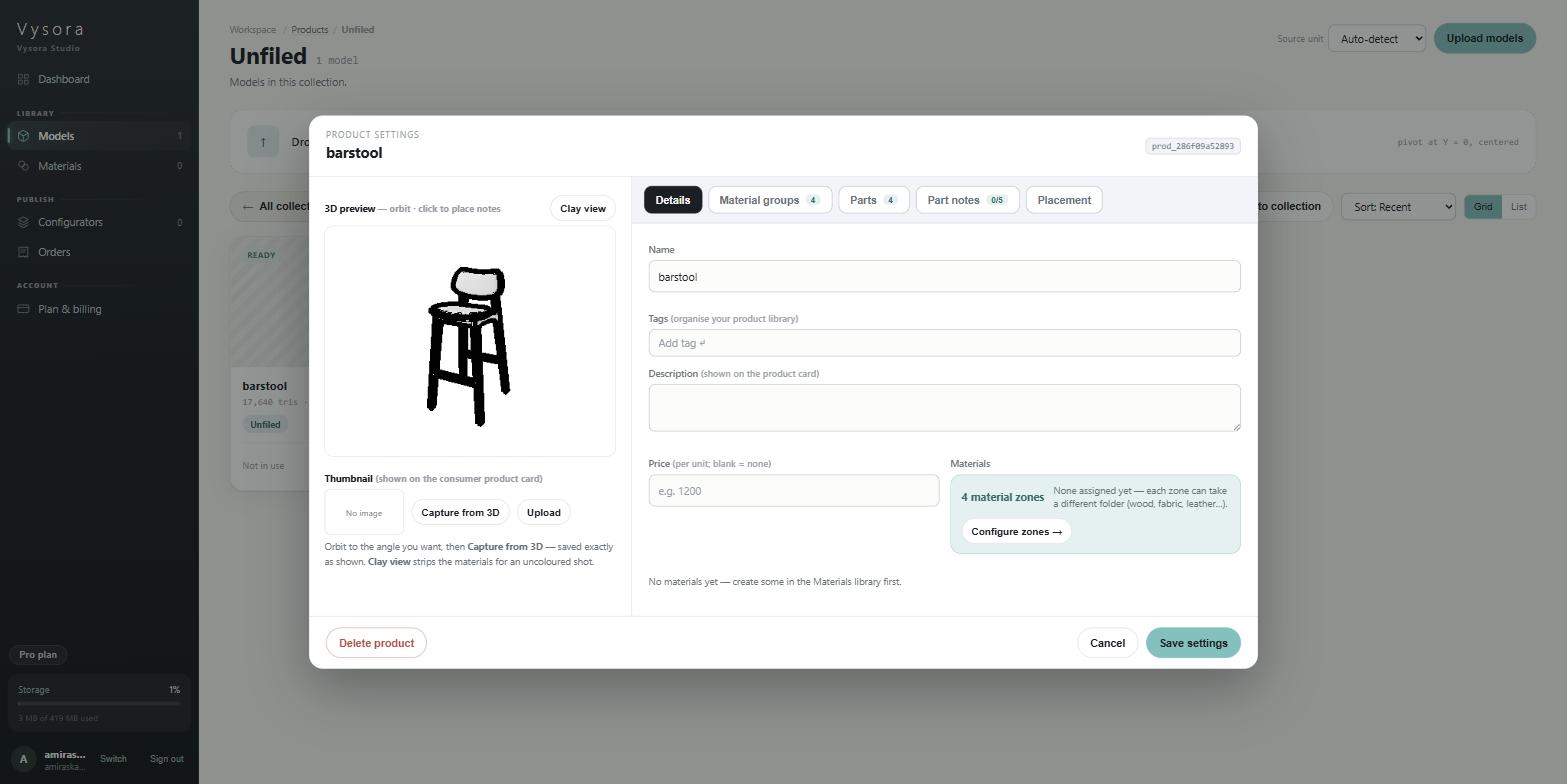
If it has zero, you get no warning at all, which is why an OBJ upload can look clean and still be useless. Check the zone count yourself on the product's Details tab, where it reads 4 material zones.
Causes, in the order they actually happen:
- The file is an OBJ. Materials are never carried — the
.mtland image files are separate files and the upload is single-file. Re-export as GLB or FBX. Nothing in Studio can recover this. - Everything shares one material in the source. One material is one zone, permanently. Re-export with a separate material per recolourable part.
- The exporter was set not to write materials. Check the material option in your glTF export settings.
- Objects were joined or attached and their material slots collapsed into one.
- Two zones were byte-identical materials and were merged by de-duplication. Sharing a name does not cause this — the barstool's three
ASHzones survive as three — but making each zone's material genuinely distinct, with its own name and base colour, removes the question entirely.
There is no repair in Studio for any of these. Zones come from the file; Studio cannot create, split or merge them.
There are far too many zones
Every distinct material becomes a zone, and imported or CAD-derived geometry is generous with materials: one per layer, per block, sometimes per face. Sixty materials is sixty zones, and the Material groups tab is a flat list with no search, filter or bulk assign. Sixty cards, configured one at a time.
Above fifty you also get:
62 material slots (recommended ≤ 50) — consider merging materials.
Fix: consolidate in the source application so there is one material per part the customer will genuinely choose between, then re-export. Screws, brackets and internal structure that nobody recolours separately should share one material.
Check the zone list before handing the model over. Fixing the export is far cheaper than configuring sixty zones by hand.
The model is black, grey or untextured
Work down this list. The first two are false alarms.
1. You are looking at the Studio preview, not a render. The 3D preview in Product settings is deliberately stylised: every material is replaced with flat light grey and an outline is drawn over it. Your textures are never shown there. Zones with material folders assigned are tinted with their default material's flat colour; zones with no folders stay grey.
2. Clay view is on. That button strips all zone tinting so you can capture a neutral thumbnail. Toggle it back to Materials.
3. The zones have no folders assigned. An unmapped zone renders grey in the preview and offers the customer nothing to click in the published configurator. Fix it in Studio by assigning a folder to each zone. It is not an export problem.
4. The textures were not embedded. Uploads are single-file. A GLB that references image files by path has nothing to resolve them against, and unreferenced or unresolvable textures are pruned. Re-export with textures embedded in the binary.
5. The file is an OBJ. No materials, no textures, no recovery. Re-export as GLB or FBX.
6. There are no UVs. You will have seen:
2 primitive(s) have no UVs — textures will still display (the player projects them automatically), but a proper unwrap gives you exact control over tiling and seams.
Textures still appear, but tiling and seams are out of your hands. Unwrap and re-export if the finish matters.
7. Glass and coated surfaces look opaque. Some glTF material extensions are accepted but not rendered:
This model uses transparency, refraction, which the player doesn't render yet — those surfaces will appear opaque. You can set a per-material opacity in the Materials library for tinted or frosted glass; true refraction (gems, thick crystal) isn't supported.
Tinted and frosted glass can be approximated with a per-material opacity in the Materials library. Thick refractive glass and gemstones cannot.
The shading changed
Coincident vertices are welded on every model. Where a hard edge existed only because the vertices were split, welding can soften it. Put a real material boundary or actual geometry where you need a crease.
Normals are generated if they are missing, and you are told:
3 primitive(s) have no normals — they will be generated automatically.
Generated normals are rarely what you wanted on a hard-surface model. Export normals.
Fine detail disappears when the configurator loads
That is the low-detail placeholder. Two reduced copies of every model are generated, one at a 50% triangle target and one at 15%, and the 15% version is what the customer sees while the full model loads and at distance.
Thin features, small chamfers, hardware and text geometry go first. If a detail defines the product, give it enough geometry to survive, or build it into the silhouette rather than as separate small parts.
It was rejected on upload
Every message that stops a model, with its cause and remedy.
| Message | Cause | Fix |
|---|---|---|
Accepted formats: .glb, .fbx, .obj. |
The extension is not one of the three. .gltf with a separate .bin is not accepted. |
Export binary glTF (.glb), or FBX. |
File exceeds your plan's 30 MB per-model limit. Upgrade or optimize the model. |
Over your plan's cap — 5 MB Free, 15 MB Starter, 30 MB Pro, 100 MB Enterprise. | Reduce texture resolution first, then geometry. See Size, triangles and textures. |
File exceeds the 200 MB platform upload limit. |
Over the ceiling that sits above every plan. | The model needs rebuilding, not re-exporting. |
Product quota reached (200). |
The workspace has used all its product slots. | Delete a product, or move to a higher plan. |
Editor role required. |
Your account has viewer access to this workspace. | Ask the workspace owner for editor access. |
File is not a valid GLB after intake. Export as GLB, or re-upload the source. |
The file is not a binary glTF once it reached processing — commonly a renamed file, a .gltf JSON, or a corrupted transfer. |
Re-export as GLB and upload again. Do not rename a file to change its format. |
File is not a GLB/glTF (magic-byte check failed). |
Same cause, caught by the content check rather than the extension. | As above. |
Invalid glTF: {details} |
The file is a glTF but cannot be parsed — truncated upload or a malformed export. | Re-export and re-upload. If it repeats, export from a clean scene. |
The file contains no mesh geometry. |
Nothing in the file is a mesh — curves, lights, cameras, empties or NURBS only. | Convert everything to mesh before exporting. |
Required glTF extension not supported by the Vysora Player: {extension name} |
The file requires a glTF extension the player cannot load; the message names it. | Turn off the exporter option that produced that extension and re-export. |
Model has 812,430 triangles; the limit is 500,000. Decimate before uploading. |
Over the triangle limit. Nothing is decimated for you. | Decimate in your application, check the count with modifiers applied, and strip hidden interior geometry. |
Texture "wood_diffuse" is 8192×8192; the limit is 4096². |
A texture's longest edge is over 4096 px. Nothing is resized for you. | Resize the named texture. 2048 is usually more than enough at product scale. |
OBJ→GLB failed: {details} |
The OBJ could not be converted. | Re-export the OBJ, or better, export GLB or FBX so materials survive. |
FBX→GLB failed: {details} |
The FBX could not be converted. A very heavy FBX can also exceed the five-minute conversion budget. | Simplify the scene, or export GLB directly. |
Processing failed unexpectedly — try re-uploading or contact support. |
A failure with no specific cause recorded. | Re-upload once. If it recurs, the file needs looking at by Vysora. |
A small number of rarer failures name internal components of the processing service. They are not export problems and there is nothing to change in your file: re-upload once, and if the failure repeats, it needs Vysora's attention.
When re-processing fails
| Message | Cause | Fix |
|---|---|---|
This product has no stored source to re-process. |
The product has no original upload recorded against it. | Upload the model again as a new product. |
The original source file is no longer available. Re-upload the model. |
The stored source is gone. | Upload the model again. |
Still wrong
Work back through the contract, What Vysora needs from a model, and if the problem is which parts can be recoloured, How material zones work. Zones are decided entirely by the file, so a zone problem is almost always solved in the export and nowhere else.