Quote requests
Read, track and reply to the quote requests your published configurator sends you, on the Orders screen.
When a visitor finishes configuring a product in your published player, they can submit the Request quote form. What they built arrives in Vysora Studio under Orders: the products, the quantities, the materials they chose, their contact details and any message they wrote.
That screen is a working inbox. You change a request's status as you deal with it, and you reply by email.
The two tabs
The screen is titled Orders, with the sub-line Quote requests from your configurator, and your Vysora purchases. The control at the top right switches between two tabs:
Quote requests— the inbox, and the default view. Everything on this page is about this tab.Purchases— your own Vysora subscription invoices. This tab holds no data of its own; it points you at your Vysora account:Your Vysora subscription invoices are managed in your account — see Plan & billing, or your Vysora account site.See Your workspace, plan and branding.
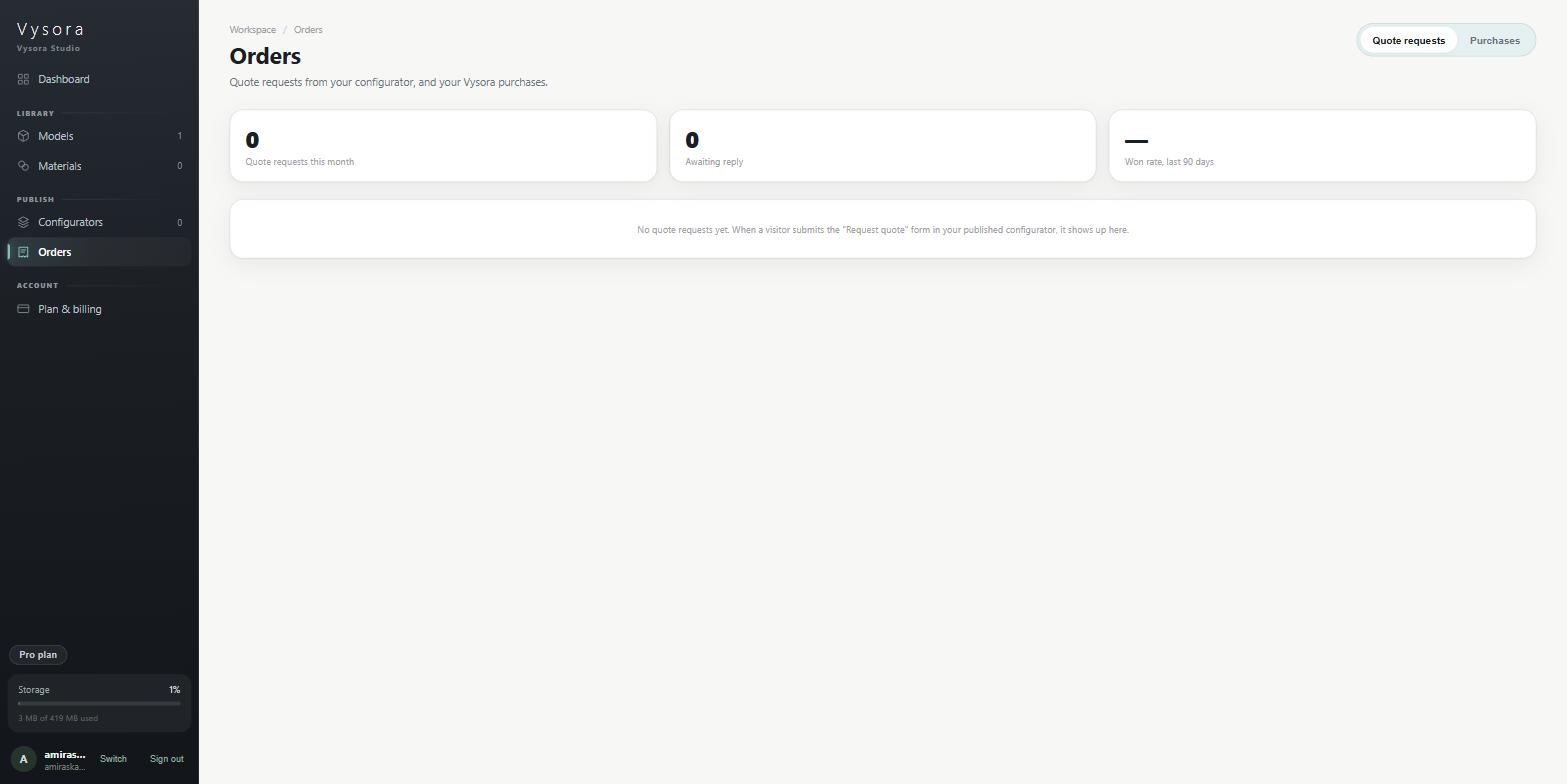
Before your first request, the tab reads: No quote requests yet. When a visitor submits the "Request quote" form in your published configurator, it shows up here.
The three stat cards
Three numbers sit above the table. Each is calculated differently, and the differences matter.
| Card | Counts |
|---|---|
Quote requests this month |
Requests received in the current calendar month, in your own timezone. |
Awaiting reply |
Requests whose status is still New. |
Won rate, last 90 days |
Of the requests received in the last 90 days that you have marked Won or Lost, the percentage marked Won. |
Two consequences follow.
Quote requests this month resets on the 1st. It is a calendar-month count, not a rolling 30 days. On the 1st of the month it drops to zero and starts again, however busy the previous week was. It is not a trend line, and it will look alarming on the 1st.
Won rate only counts decided requests. Requests still sitting on New or Replied are not in the denominator, so the figure describes the ones you closed, not everything you received. Until you have marked something Won or Lost within the last 90 days, the card shows — rather than 0%.
The table
Four columns, plus an unlabelled actions column at the end.
| Column | What it shows |
|---|---|
Customer |
The name the visitor gave, in bold, with their email beneath. A dash if there is no name. |
Configuration |
The configurator they used, and beneath it a one-line summary of what they configured, as 2× Barstool, 1× …, truncated if it is long. |
Received |
The date the request arrived, such as 11 Sep 2026. |
Status |
A coloured dropdown — see below. |
The actions column holds a View button, which becomes Hide once the row is open.
Statuses
Every request carries one of four statuses, and the dropdown lists them in this order:
New— nobody has dealt with it yet. This is what a request arrives as, and it is whatAwaiting replycounts.Replied— you have answered and are waiting on the customer.Won— it became an order.Lost— it did not.
Reading a request
View expands the row in place and shows up to three blocks.
Items — one line per item, as 2× Barstool, followed by the materials the customer chose and the line total when the configurator was set up with prices. A Total line closes it out when there is one. This block is the configuration itself, and it tells you what to quote for.
Message — whatever the customer typed in the form, and their phone number if they gave one. It only appears when there is a message or a phone number, so a row without it means they left both blank.
Reply — the two actions you can take on the request.
Replying
Email <customer name> opens a new message in your own email program, addressed to the customer, with the subject Your Vysora quote request already filled in. When the customer gave no name, the button reads Email customer.
The reply itself does not go through Vysora and is not recorded against the request. Studio has no record that you sent it, and the customer's answer comes back to your inbox, not here. So after you send the email, come back and set the status to Replied. That dropdown is the only thing tracking where a request has got to.
Keep the itemised list in front of you while you write. The customer chose specific materials on specific parts, and quoting the right finish is the whole reason the request carries that detail.
Deleting a request
Delete, next to the email button, removes the request. It confirms first:
Delete the quote request from <customer>? This can't be undone.
That is accurate. There is no archive, no trash and no restore. A deleted request is gone, along with its configuration and the customer's message. If you only want it out of your way, Lost is the better answer: it keeps the record, and it keeps your Won rate honest.