Publishing and embedding
Run the pre-publish review, publish a version, and put the configurator on your own website with the embed code or the direct link.
Until you publish, a configurator exists only inside Vysora Studio — the builder's own preview pane included. Publishing is what turns the draft into something a customer can open.
It does two things at once: it takes a snapshot of your menu tree, products, materials, logo and business details, and it points one permanent link at that snapshot.
Before you publish
Publish sits in the builder header. It is disabled while a save is still in flight, and until the menu tree has at least one node; in that case the tooltip reads Add at least one menu node first.
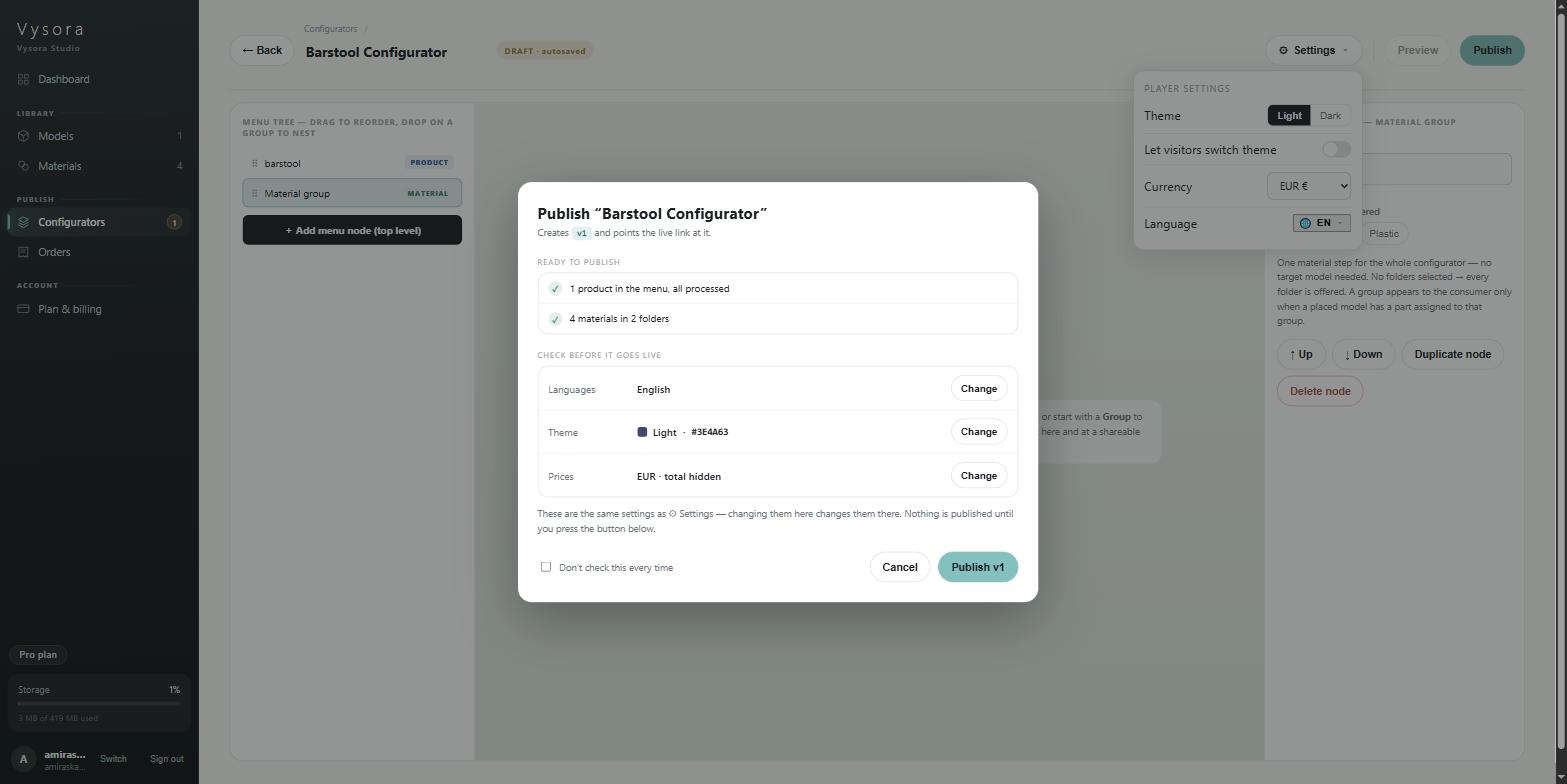
Clicking it opens the review dialog, headed Publish "<your configurator name>" with the sub-line Creates v1 and points the live link at it. (v2, v3 and so on once you have published before).
What the checks mean
The top section, Ready to publish, lists what Studio found. Green ticks are confirmations; amber exclamation marks are warnings.
Green — {n} products in the menu, all processed. Every product node points at a model that finished processing successfully. Only models that are both referenced in the tree and ready in your library are counted.
Green — {n} materials in {k} folders. Your workspace has materials to offer. This counts the whole library, not only what this configurator uses.
Amber — No product is chosen yet. Detail: The configurator will open with an empty scene. You have menu nodes but no product node with a model selected. Publishing this gives your customer a menu over nothing.
Amber — {n} zones have no material folder. Detail: up to three zone names, then — these won't be recolourable. Publishing is fine; they just won't offer swatches. Take this one seriously. Those parts of the model will render, and the customer will be able to look at them, but they will have no swatches. To a customer who expected to choose a finish, that reads as broken. The fix is not in the configurator: open the model, go to its Material groups tab, and assign a folder to each listed zone.
Amber — {n} material steps would be empty. Detail: the step names, then — no material matches the chosen folders. A Material group node is filtering on folders that hold no materials. Either add materials to those folders or clear the filter on the node so every folder is offered.
The settings rows
Below the checks, Check before it goes live holds three collapsible rows. One opens at a time; Change becomes Done.
| Row | What you can set |
|---|---|
Languages |
Which languages are offered, which is the default, and Let visitors switch language. |
Theme |
Light or dark, Accent (a colour swatch and a hex field), Let visitors switch light / dark, and a small mock preview showing your accent on the Request quote button. |
Prices |
Currency — here you get EUR, USD, GBP, AED, SAR and CHF — and Show a running total to customers. |
Two settings exist only here: the accent colour and Show a running total to customers. Neither appears in the builder's ⚙ Settings popover. Tick Don't check this every time at the bottom of the dialog and Studio stops showing it on clean publishes, which loses you the route to both. The dialog still opens whenever there is at least one warning, and that is how most people find it again. That preference is stored in your browser, so it applies to you on this machine only and not to a colleague.
When you are ready, press Publish v1.
Versions and the link
Versions are whole numbers starting at 1. Each publish mints the next one.
The link never changes. v2 is served from the same URL as v1. That is the point of it: any site that has already embedded your configurator picks up the new version the next time someone loads the page, with nothing for you or your web developer to do. It also means there is no soft launch. The moment you publish, every site carrying that embed is showing the new version.
There is no version history and no rollback. Once v4 is out, v3 is not reachable from Studio. If you are about to make a large change, be sure about it, because the way back is to rebuild it.
The embed code and the direct link
A successful publish opens a dialog with everything you need to put the configurator on your site.
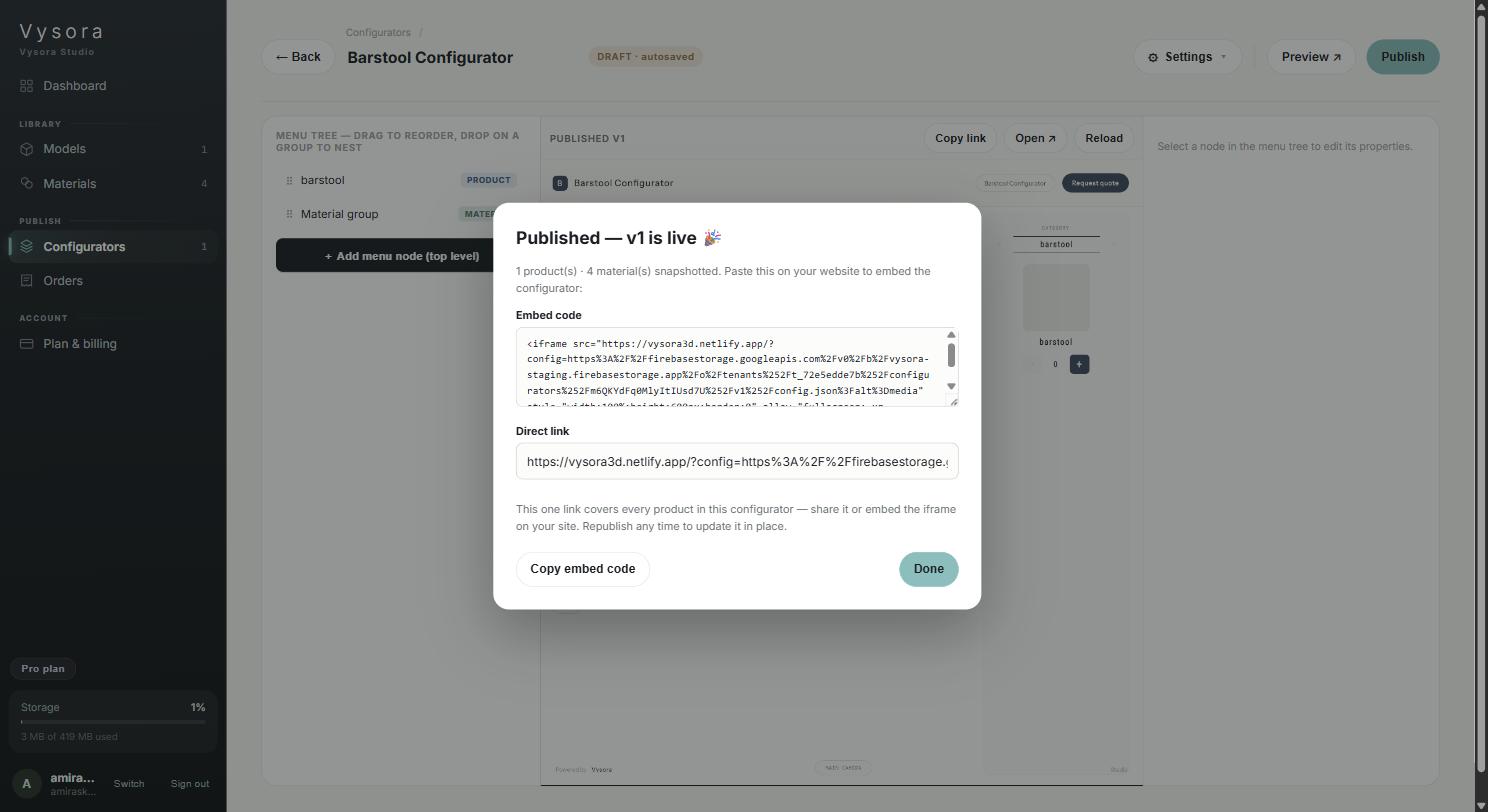
It gives you:
Embed code— an<iframe>snippet for your own page.Copy embed codeputs it on your clipboard. Clicking into the box selects all of it, so you can copy it by hand too.Direct link— the player URL on its own, for sending to someone, putting behind a button, or posting in an email.
Neither copy button shows a confirmation. Nothing flashes and no message appears. The copy has still worked.
The snippet has this shape:
<iframe src="YOUR-PLAYER-URL" style="width:100%;height:600px;border:0"
        allow="fullscreen; xr-spatial-tracking" title="Your configurator"></iframe>
YOUR-PLAYER-URL is filled in for you, and the title carries your configurator's name. The allow attribute is what lets the player go full screen and use AR on phones that support it. Keep it. The 600 px height is a starting point; change it to suit your page, and give the iframe a container that is at least a few hundred pixels tall on mobile.
Why the link is so long
The URL you get back is several hundred characters. That is not a mistake and not something to tidy up. The link carries the address of your published configuration as a parameter inside it: the file holding your menu tree, product list and material palette. Cut any of it off and the player has nothing to load.
So: paste it exactly as Studio gives it to you. Do not shorten it by hand, do not let a text editor or a chat client wrap it across two lines, and if you are pasting into a website editor, use a plain-text or HTML block so nothing is re-encoded. If the embed shows an empty player, a truncated URL is the first thing to check.
Previewing what you published
Preview ↗ in the builder header opens the live player in a new tab. The centre pane of the builder shows the same thing inline, with a Published v1 bar and a Reload button.
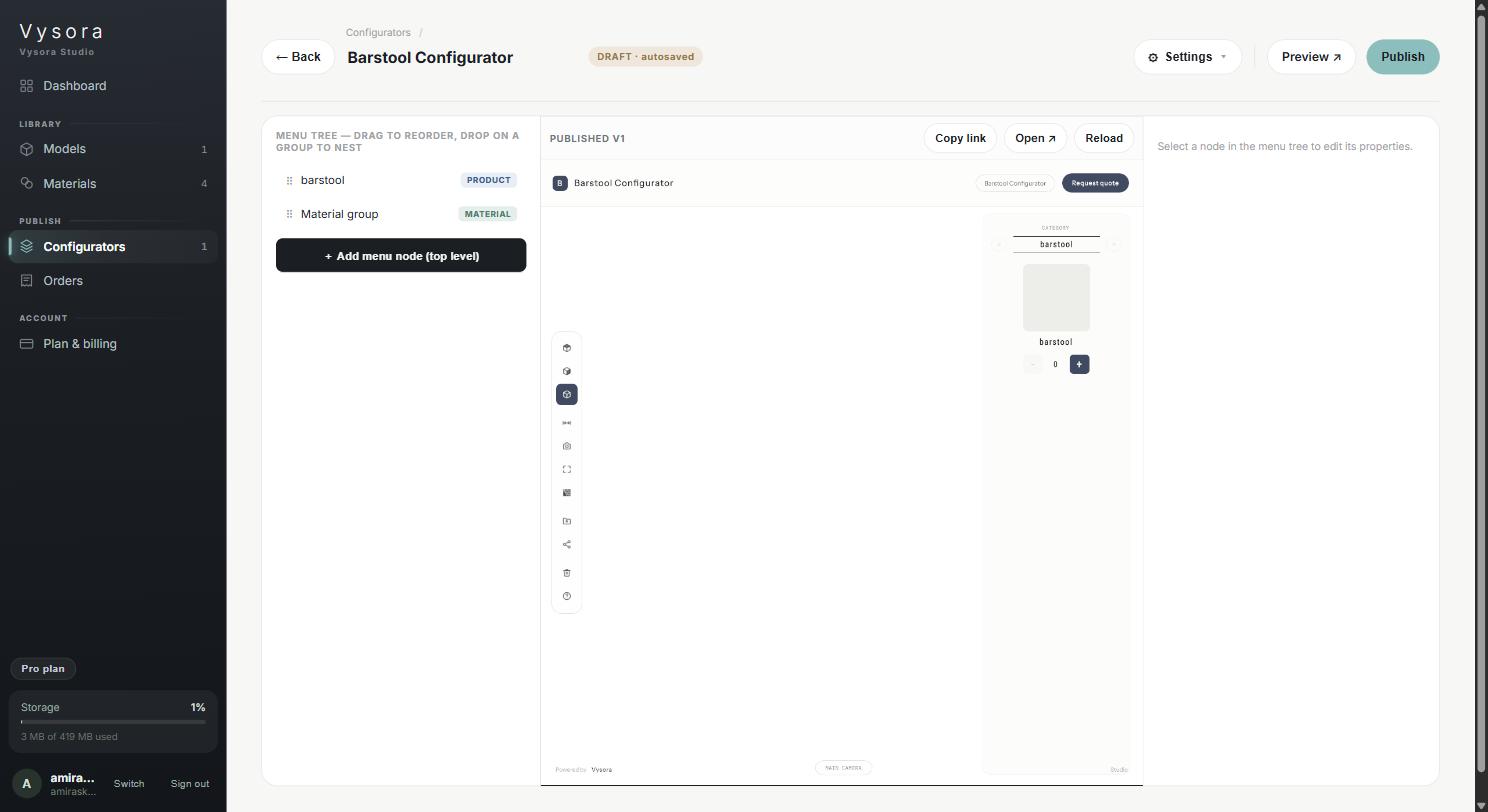
Both show the published version. If you have edited since, the pane says so: You've edited since the last publish — click Publish to refresh this preview. See Building a configurator for more on that.
Changing something after you've published
Nothing you change in Studio reaches a live configurator until you publish again. This is the most common surprise in the product, so here is the whole list:
| You changed | What it takes |
|---|---|
| The menu tree — added, removed, renamed or reordered nodes | Republish |
| A product's settings — zones, material groups, parts, placement, size | Republish |
| A material — colour, roughness, texture, price | Republish |
| Materials added to or removed from a folder | Republish |
Your logo or business details in Brand & business |
Republish, then hard-refresh the player |
| A material folder's name | Re-pick the folder on the product, then republish |
That last row is the one that catches people. Renaming a folder in the materials library does not update the products that point at it. They hold the old name, and a republish alone carries the old name straight through. Open each product that uses the folder, re-pick it on the Material groups tab, and then publish. See Material folders.
For the logo and business details, a republish is necessary but sometimes not sufficient, because a browser that has already loaded the player may have the old version cached. Hard-refresh the page (Ctrl+F5, or Cmd+Shift+R on a Mac) before concluding it did not work.
Unpublishing and deleting
Both live on the configurators list, not inside the builder.
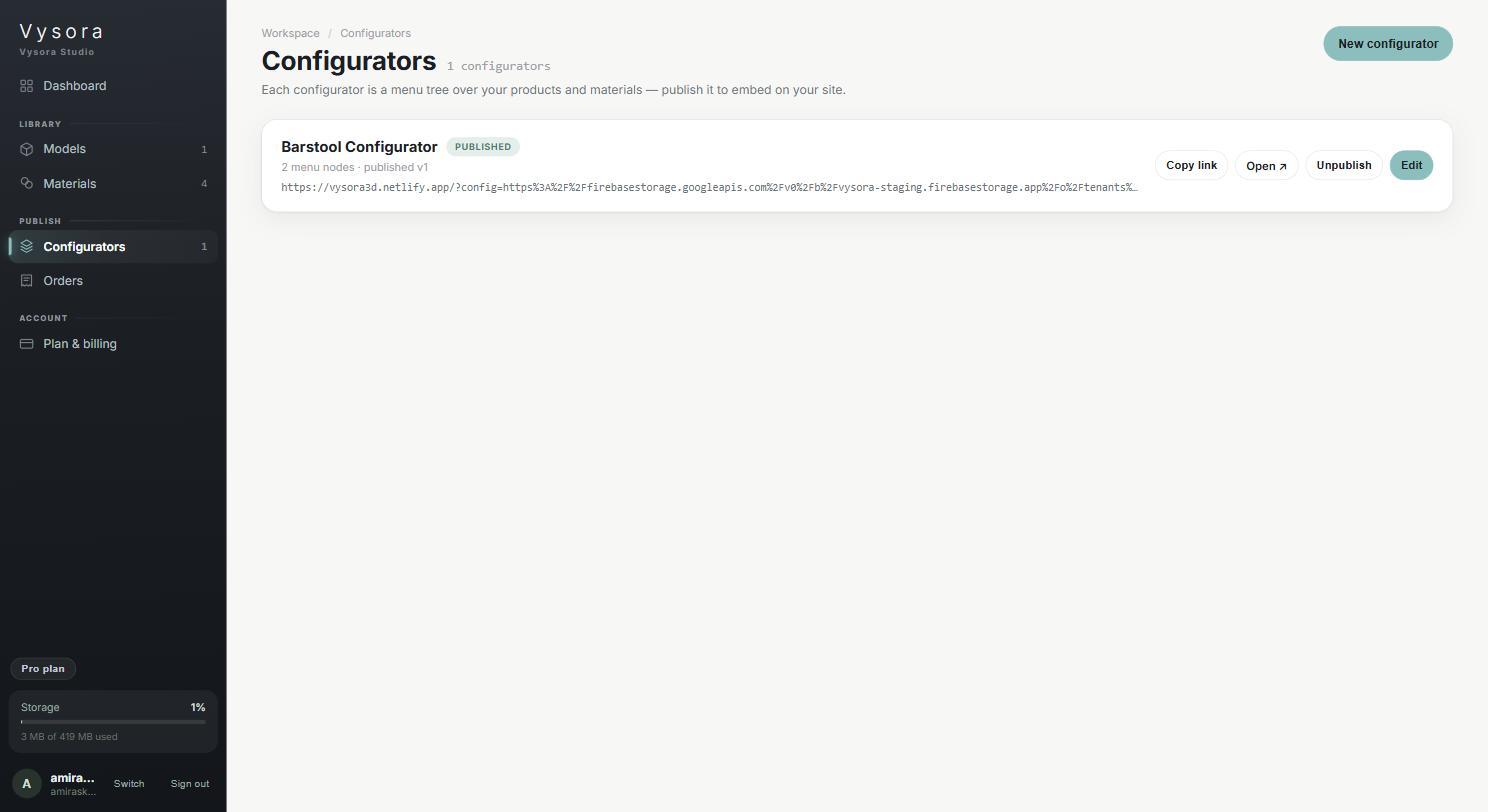
A published card shows Copy link, Open ↗, Unpublish and Edit. Unpublish confirms first: Unpublish this configurator? Its embed link stops being served and the published slot frees up so you can publish a different one.
Two things follow. The embed on your website stops working the moment you unpublish, and it does not fall back to an older version, so take the iframe off your page as well. And your plan allows a limited number of published configurators at once, so unpublishing one is how you make room for another. See Your workspace, plan and branding for the allowances.
A configurator must be unpublished before it can be deleted. While it is live there is no Delete button at all, and if you reach the action another way Studio says Unpublish this configurator first, then you can delete it. Once unpublished, Delete appears and confirms with Delete "<name>"? This permanently removes its menu tree and can't be undone. That is exactly what it does. The menu tree is gone. Your models and materials are not touched.