How material zones work
A zone is one mesh and one material slot index — the unit of recolouring. Where zones come from, why the index is the identity, and how to control them.
Everything a customer can recolour in a published configurator is a zone, and zones are decided entirely by how you build materials in your 3D application. Vysora Studio cannot create a zone, split one, merge two, or rename the thing a zone points at. It can only assign swatches to the zones your file already contains.
So read this before you export anything. Get it right and the rest is bookkeeping. Get it wrong and the only fix is a re-export.
What a zone actually is
A zone is one (mesh node, primitive index) pair — one independently recolourable renderer.
That needs unpacking, because "primitive index" is not a thing you ever type into your 3D application.
No exporter can put two materials on one piece of geometry when it writes glTF. So it splits. Every mesh is cut into primitives, one per material used by that mesh's faces. A chair whose seat, legs and frame carry three different materials leaves your application as one object and arrives as one mesh of three primitives, numbered 0, 1 and 2 in material slot order.
Vysora produces one zone per primitive, addressed by the owning node's name plus the primitive's index within that mesh. In Studio it shows on every zone card as a monospace line:
ASH · slot 1
The left half is the material's name, shown so you can recognise the part. The right half, slot 1, is the identity. Internally the zone key is mesh#slot, and that key is what folder assignments, pinned defaults and display names are stored against, and what the published configurator addresses.
So, bluntly:
One material assigned in your 3D application = one primitive in the export = one recolourable zone.
Geometry is split at material boundaries. Splitting objects gives you named zones. Splitting materials gives you zones at all.
Why the identity is the slot index and not the material name
Because material names collide, constantly, and Vysora is built for the workflow where they collide most.
The barstool used in every screenshot on this site is one mesh with four primitives. Here is its zone list exactly as Studio shows it:
| # | Zone | Technical line |
|---|---|---|
| 1 | ASH | ASH · slot 0 |
| 2 | PLASTIC | PLASTIC · slot 1 |
| 3 | ASH | ASH · slot 2 |
| 4 | ASH | ASH · slot 3 |
Three of the four zones are called ASH. They are not duplicates and not a mistake: they are three elements of a 3ds Max Multi/Sub-Object material whose sub-materials happen to share a name. Zones 1, 3 and 4 can each take a different folder and a different default. The customer can set them to three different oaks.
If identity were the material name, all three would collapse into one, and the only honest options would be to merge them or refuse the model. Because identity is the slot index, they stay three zones with no ambiguity at all. Highlighting follows the same rule: hovering zone 3's card lights the third primitive in the 3D preview, not every primitive named ASH.
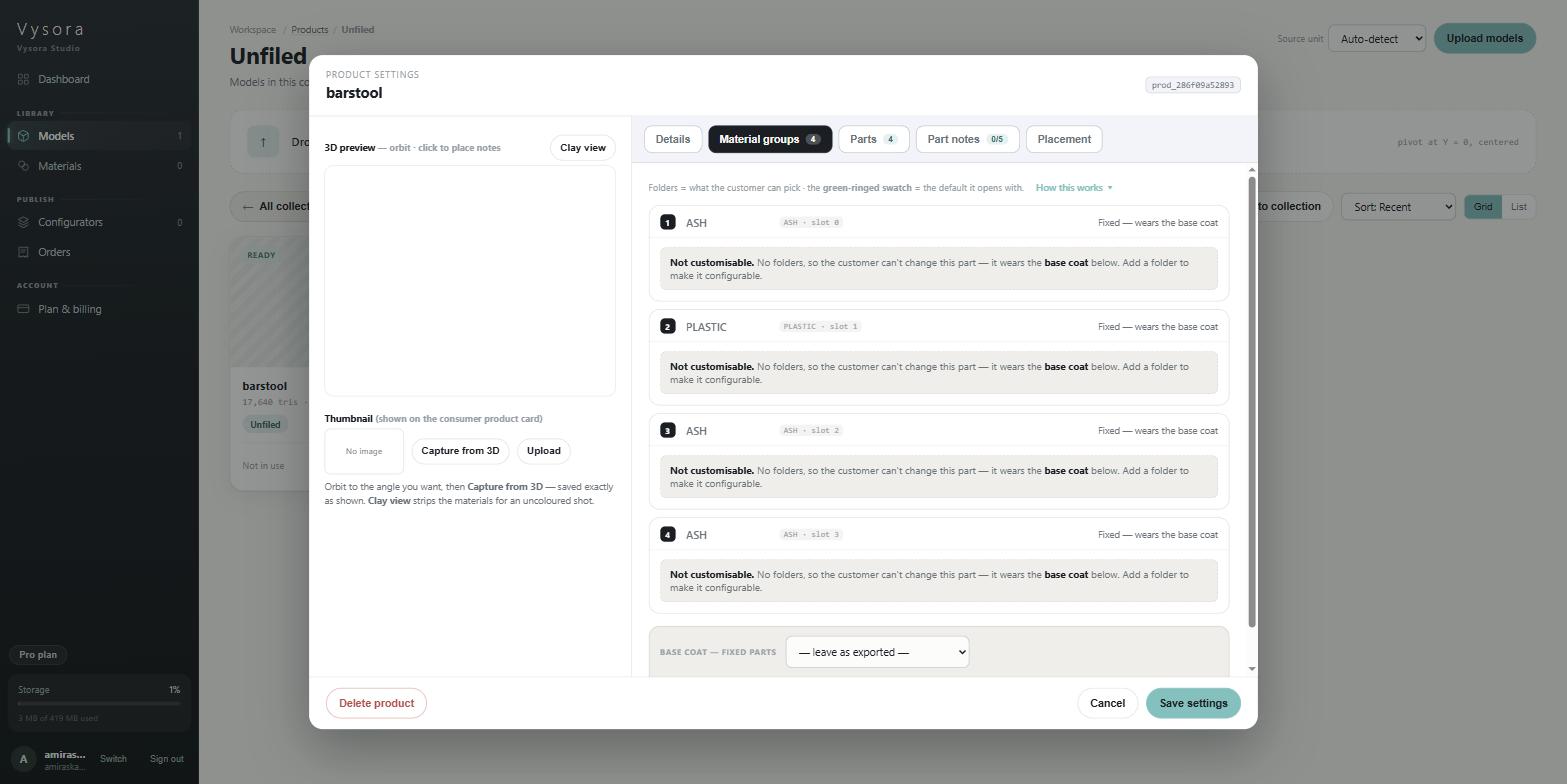
It is also why renaming materials never "fixes" a zone list. Names are shown for recognition and never matched on, so renaming changes the label on the card and nothing else. Reordering the slots changes everything.
Studio says the same thing in its own words, under How this works ▾ on the Material groups tab: each zone is "one renderer ID from your export — one independently recolourable part (each element / sub-material slot, e.g. a Max Multi/Sub-Object material, even when slots share a material name)."
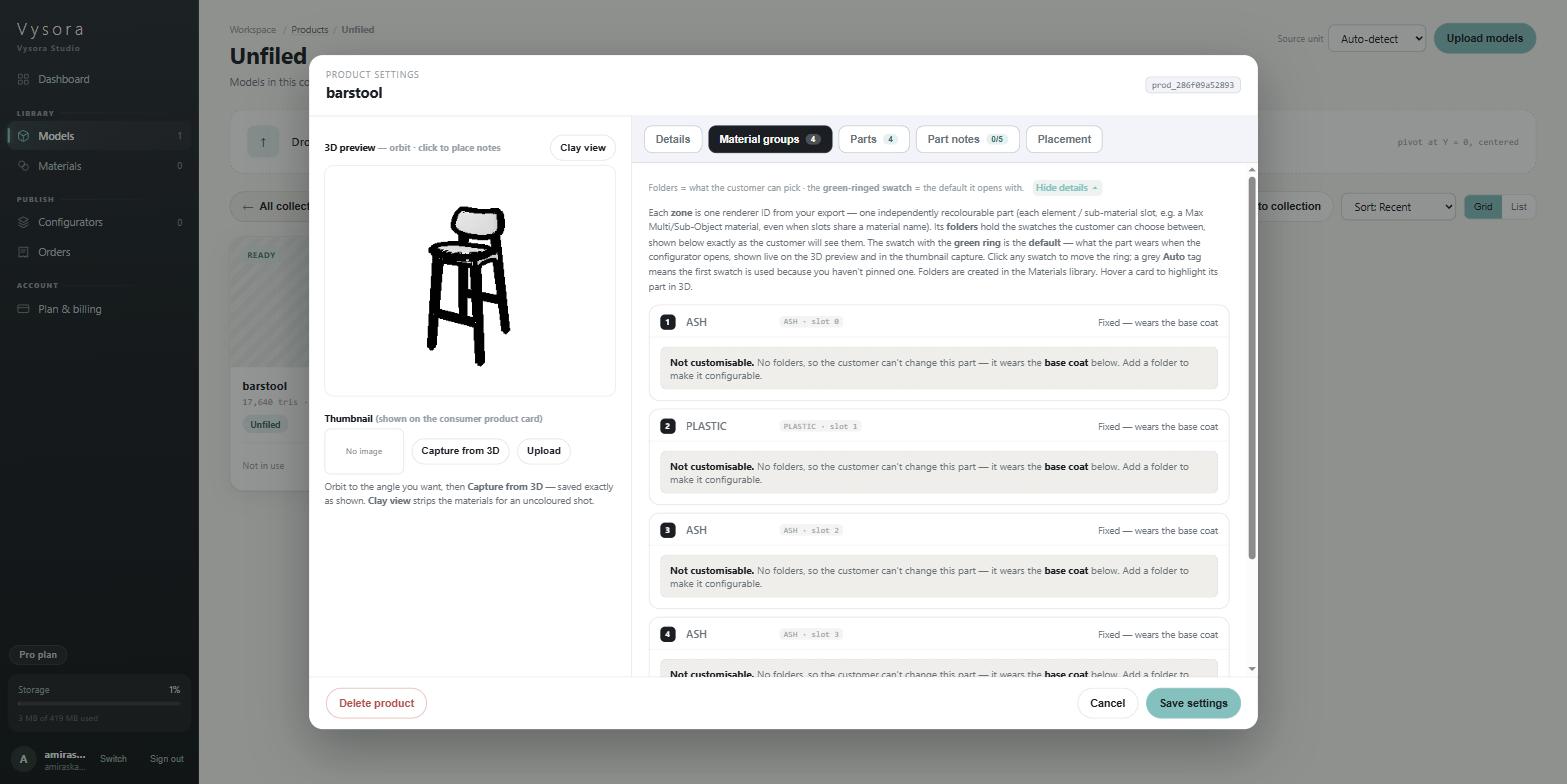
The four consequences you must design around
One material in your 3D application = one zone
Nothing else creates a zone. Not a modifier, not an object split, not a smoothing group, not a named selection set, not a layer. If the seat and the legs share a material, they are one zone, and the customer will always recolour them together.
Decide the recolourable parts first, then build one material per part. A chair a customer should be able to spec as "oak legs, grey seat, black footrest" needs three materials, even if all three start as the same grey.
Merging everything into one material is the one thing Vysora cannot work around
A model that arrives with a single material produces one zone, and Vysora tells you so:
This model has one material, so customers can only recolour it as a whole. To offer separate parts (seat, legs, frame), re-export with a separate material per part — Vysora creates a configurable zone for each one automatically.
There is no repair for this in Studio. No setting, no re-process, no parts editor. Re-export with the materials separated.
Node names become the zone's mesh name, so name your objects
The mesh half of the zone address is resolved in this exact order: the node (object) name, then the mesh data name, then the literal string unnamed.
Leave objects unnamed and they all resolve to unnamed, indistinguishable from each other in Studio. Names are also matched as bare strings with no path or hierarchy, so two objects called leg in different parts of the scene cannot be told apart.
Give every object a unique, meaningful name: seat, legs, frame, footrest. These are the strings the person mapping swatches reads when deciding which folder belongs where.
Slot order is positional, so freeze it before handoff
slot 2 means "the third primitive of this mesh", nothing more. Primitive order follows material slot order in your export. Move a material slot up the list and every zone from that point down changes address.
If the client has already assigned folders, pinned defaults and display names against barstool#1, barstool#2, barstool#3, a re-export with reordered slots leaves that work pointing at different parts of the model. Silently, with no error. The configurator still publishes. It recolours the wrong things.
So settle the material order before you hand the model over. If you must re-export later, keep the slot order byte-for-byte identical, and add new materials at the end of the list rather than in the middle.
One object with many materials, or many objects with one each?
Both work, and they produce different zone addresses.
| Export | Mesh nodes | Zones | Slot numbers |
|---|---|---|---|
| One object, 3 material slots | 1 | 3 | 0, 1, 2 |
| Three objects, 1 material each | 3 | 3 | 0, 0, 0 |
The first is the 3ds Max Multi/Sub-Object shape: all three zones share the mesh name barstool and are distinguished by slot. The second is the typical Blender shape, where each zone has its own mesh name and is slot 0.
Prefer separate, meaningfully named objects when the product genuinely has separate parts. The names carry information, and each object has one slot, so nothing is re-addressed by a slot reorder. Use one object with many slots when the geometry really is one shell — which is exactly when Multi/Sub-Object exists.
Make each zone's material genuinely distinct
Before zones are read, every model goes through a de-duplication pass that merges byte-identical materials. Two slots identical in every respect are candidates for merging.
Less dangerous than it sounds: the barstool's three identically-named ASH slots survived as three separate zones, so sharing a name merges nothing. The safe habit still costs nothing. Give each zone's material its own name and ideally its own base colour, rather than relying on slot separation alone. You are handing the client a zone list they have to recognise anyway.
Keep the count sensible
There is no hard limit on zones, but above 50 material slots you get:
62 material slots (recommended ≤ 50) — consider merging materials.
The real constraint is the person configuring it. The Material groups tab is a flat vertical list of cards with no search, filter, grouping or bulk assign. Sixty zones is sixty cards to scroll through and set up one at a time. If a model has thirty screws that will never be recoloured separately, give them one shared material.
What happens next, in Studio
Once the model reads READY, the zones appear on the product's Material groups tab. Someone, you or the client, assigns each zone one or more folders from the Materials library. Every material in an assigned folder becomes a swatch the customer can pick on that part, and the swatch with the green ring is the default it opens with.
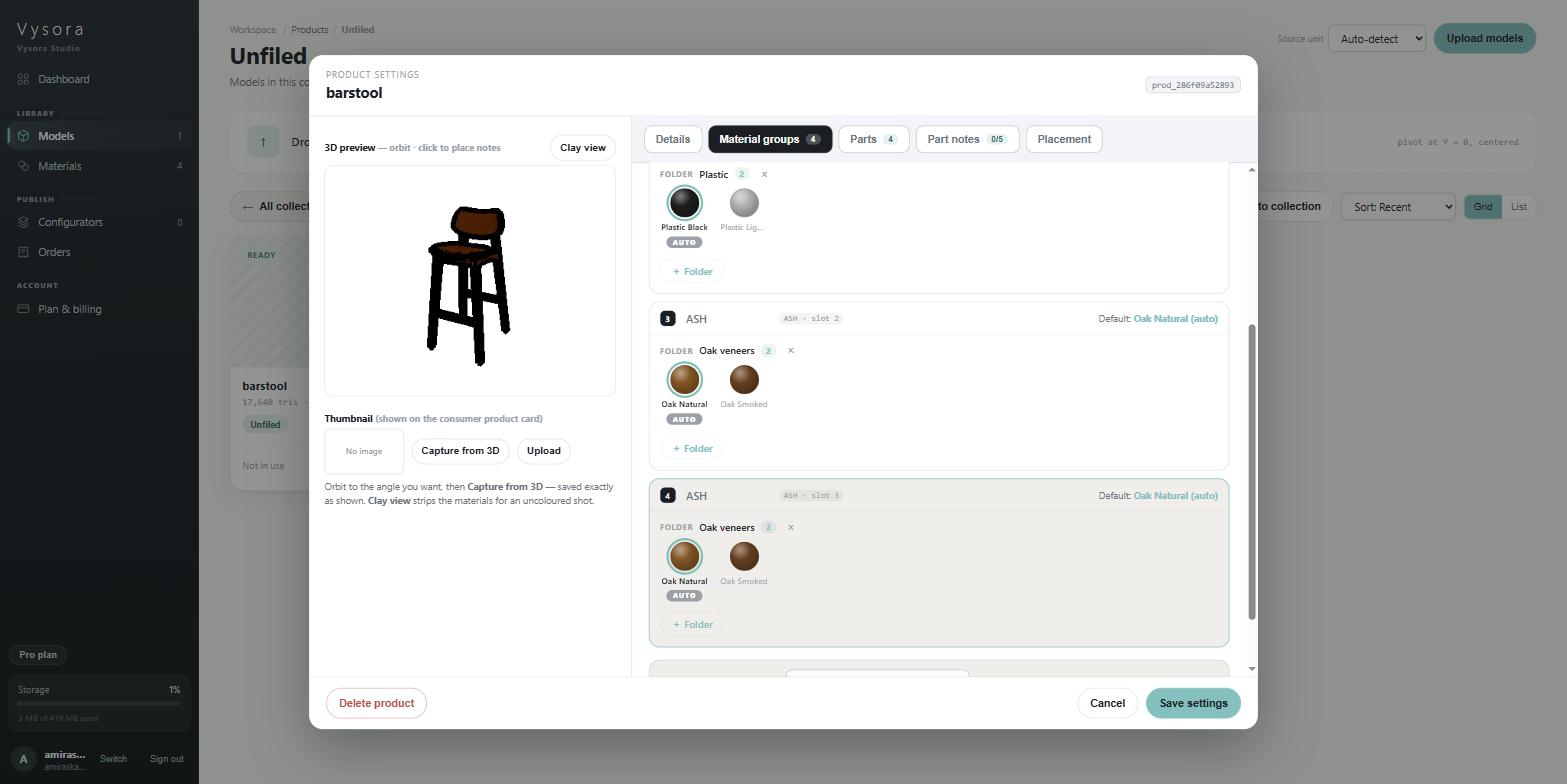
A zone with no folder is not an error. It wears the base coat and stays fixed. That is a legitimate choice for a part that genuinely does not vary, as long as it is a choice and not an oversight.