Export from 3ds Max
How Material IDs become zones, why gaps collapse, why repeated sub-material names are fine, plus units, pivot and which file to send.
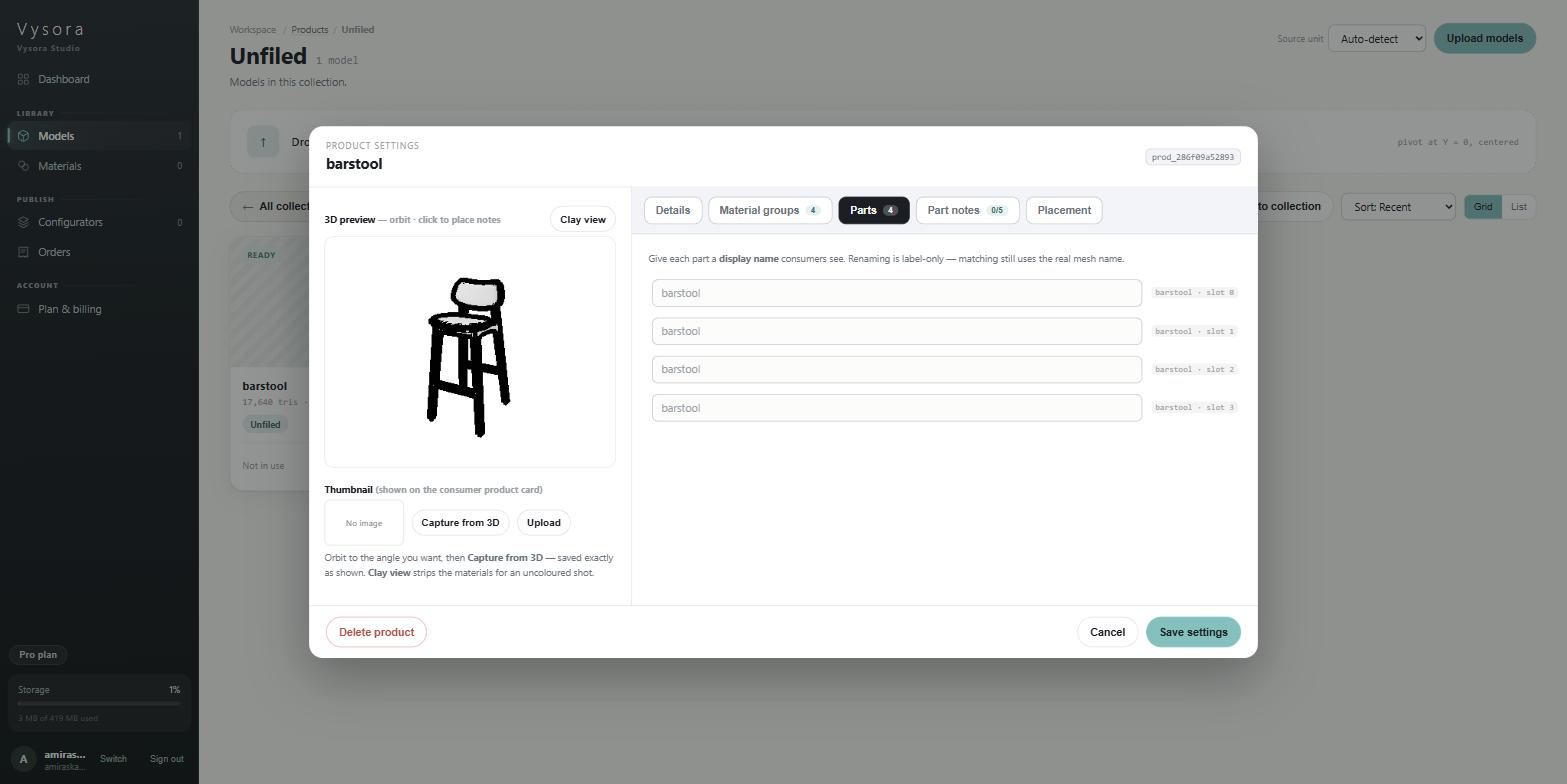
Vysora is built around the 3ds Max Multi/Sub-Object workflow. That is why a zone is identified by a slot number rather than a material name, and it is the shape the running example on this site takes: one object called barstool, four zones, three of them named ASH.
If you work in Max, your existing habits already produce good Vysora models. What this page adds is the mapping from Material ID to zone, and the handful of operations that quietly change it.
Read How material zones work first for the general model.
Material IDs become zones, in order
The workflow Vysora expects:
- One Editable Poly object.
- Its elements or face selections tagged with Material IDs — 1, 2, 3, and so on, in the
Polygon Propertiesrollout. - One Multi/Sub-Object material on the object, with a sub-material per ID.
On export, the geometry is split at material boundaries: one primitive per Material ID that faces actually use. Vysora reads one zone per primitive.
| Material ID | Vysora zone | Technical line in Vysora Studio |
|---|---|---|
| 1 | first zone | ASH · slot 0 |
| 2 | second zone | PLASTIC · slot 1 |
| 3 | third zone | ASH · slot 2 |
| 4 | fourth zone | ASH · slot 3 |
Max numbers Material IDs from 1; glTF numbers primitives from 0. So ID 1 is slot 0, and the offset holds all the way down. When the client tells you "zone 3 is wrong", ask whether they mean the third card in Studio or slot 3. The cards are numbered from 1 and the slots from 0.
Gaps in Material IDs collapse
Only IDs that faces actually use produce a primitive. Unused IDs, and unused sub-materials, disappear entirely.
An object whose faces carry Material IDs 1, 3 and 7 exports as three primitives, and Vysora reads them as slot 0, slot 1, slot 2. The numbers 3 and 7 survive nowhere. The order is preserved; the numbering is not.
Two consequences:
- Material IDs are not stable labels. They are an ordering, and only their relative order reaches Vysora.
- Deleting all the faces that used ID 2 shifts every zone after it up by one. If the client has already mapped folders to
slot 2andslot 3, those assignments now point at different parts of the model.
Keep IDs contiguous from 1, and leave the set alone once the model is handed over. If you need a new part later, give it the next unused ID at the end of the range rather than filling a gap in the middle.
Sub-material names may repeat, and that is fine
A Multi/Sub-Object material's sub-materials are frequently unnamed, or all called 01 - Default, or share a real name because three elements are genuinely the same ash.
That costs you nothing. Vysora never matches on the material name. It carries the name through and shows it on the zone card so a human can recognise the part, and that is its only job. Identity is the slot index, unique by construction.
The barstool is the demonstration: ASH · slot 0, PLASTIC · slot 1, ASH · slot 2, ASH · slot 3. Three zones named ASH, three independent sets of swatches, each highlightable on its own in the 3D preview.
You can still help whoever does the mapping. Naming sub-materials Seat, Frame, Footrest, Legs gives them something readable rather than four rows of 01 - Default. It changes nothing technically.
The object name is the zone's mesh name
Every zone inherits the name of the node that owns it. With the Multi/Sub-Object workflow that is one object, so all four zones of the barstool share the mesh name barstool and are distinguished by slot.
Name the object properly. Box001 and Editable Poly 07 export exactly as written and read exactly that badly in Studio. If you have several objects, make every name unique — matching is by bare string with no hierarchy, so two objects called leg are indistinguishable.
Operations that quietly change slot order
Slot order is positional. These are the Max operations that shuffle it:
- Attach. Attaching one object to another merges their material assignments. The Attach Options dialog decides whether IDs are remapped or condensed; either way, the resulting ID set is not the one either object had before. Treat every attach as a slot-order event and re-check the ID list afterwards.
- Reordering sub-materials in the Multi/Sub-Object rollout, or changing
Set Number. - Deleting faces that were the only users of an ID — see the gap-collapse rule above.
- Re-tagging elements with different IDs to fix a look.
None of these produce an error in Vysora. The model re-processes, the zone list has the same length, and the client's folder assignments now land on the wrong parts. If you have done any of them after handoff, tell the client to re-check the zone list rather than assuming a like-for-like swap.
Units
Max carries two unit settings and only one matters here: the system unit, in Customize → Units Setup → System Unit Setup. That is what the geometry is actually stored in. Display units only change what the spinners read.
Whatever yours is, declare it at upload in the Source unit dropdown rather than leaving Auto-detect. Max scenes are very often in millimetres or inches, and both are auto-detect's blind spots: inches are never detected at all, and a millimetre model under 800 mm is read as centimetres and published ten times too large.
Before exporting:
Reset XFormon objects that have been non-uniformly scaled, then collapse the stack. A scale sitting in the transform is a scale problem you cannot see in the viewport.- Sanity-check against a known dimension. A barstool is a little under a metre tall; if your scene says 950, your system unit is millimetres.
A model that does arrive at the wrong size is repairable without a re-export. Set the correct Source unit on the product in Vysora Studio and press Re-process. It re-runs from the original file, so repeated corrections never compound.
Pivot
Export with the pivot at the centre of the footprint and the base of the model on the floor plane.
In Hierarchy → Affect Pivot Only, centre the pivot to the object, then move it down to the base and zero it against the world. Max is Z-up and glTF is Y-up; the exporter handles the conversion, so do not rotate the model by hand to compensate.
A base more than 5 cm off the floor produces:
Model base is 0.12 m from the floor (pivot not at Y=0) — it would float above the ground. The player auto-grounds it, but export with the pivot at floor level for exact placement.
The player grounds the model so the customer never sees it hovering. Placement, snapping and camera framing still work from your origin, so an off-centre pivot behaves strangely when the object is dragged.
Which file to send
GLB is used as-is, with no conversion step, so nothing is reinterpreted. If your Max version has a glTF exporter, use it and send a .glb.
FBX is fully supported as an alternative. Vysora converts it to GLB server-side before anything else happens, and embedded materials and textures carry across. Conversion reports nothing about what it changed, so after uploading an FBX, open the product's Material groups tab and confirm the zone count and slot order before the client starts mapping swatches.
Either way, textures must be embedded in the file. Do not send OBJ — it carries no materials at all, and a model with no materials has no zones. See What Vysora needs from a model.
Before you hand it over
- Material IDs contiguous from 1, one per recolourable part, every ID actually used by faces.
- Multi/Sub-Object material with a sub-material per ID; names readable, repeats fine.
- Object named meaningfully and uniquely.
- No attach, sub-material reorder or ID re-tag since the client last configured the product.
- System unit known, and declared at upload.
- XForm reset, pivot at the base, model at real-world size.
- Under 500,000 triangles, no texture over 4096 px, under your plan's MB cap — see Size, triangles and textures.