Core concepts
The six ideas the rest of Vysora Studio is built on: workspaces, models, zones, material folders, configurators and versions.
Six ideas hold up the whole of Vysora Studio. Once you have them, every screen makes sense, including the ones where the product calls the same thing by two different names. Ten minutes here saves a lot of guessing later.
Workspaces and lines
Vysora sells three product lines, and each one is a separate workspace with its own content and its own plan.
| Line | Built for | What it does differently |
|---|---|---|
| The Studio line | Furniture and interiors | Many products in one configurator, with placement and snap-to-grid |
| Showroom | Cars, bikes and large goods | One hero product, with exploded view and part toggles |
| Atelier | Jewellery, watches and toys | One hero product, with macro zoom for small pieces |
You choose a workspace every time you sign in, at Choose a workspace. A line you own shows a plan pill — Free plan, Starter plan or Pro plan — and an Enter → button. A line you do not own is dimmed and shows Unlock Studio →, Unlock Showroom → or Unlock Atelier →, with See and compare plans beneath it.
The plan pill belongs to the workspace, not to your account. Each line is billed separately, so your Studio card can read Pro plan while your Showroom card reads Free plan. Nothing you upload into one workspace is visible from another.
The line also changes what Studio shows you. Features belonging to another line are absent altogether: no locked control, and no upgrade prompt inside the app to tell you they exist.
Models, also called products
A model is one uploaded 3D file: a .glb, or an .fbx or .obj that Vysora converts to GLB for you. Vysora validates it, optimises it for the web, and derives everything downstream from what the file contains.
The sidebar calls this Models. The page it opens is titled Products, and so are the quota counter and the delete confirmation. They mean the same thing. The intention behind the split is that to a furniture brand a product is the sofa they sell and a model is the file it ships as; the rename only reached the sidebar.
Models are filed into collections, which are purely organisational. Moving a model between collections never affects a published configurator. Material folders work the other way round, and the difference matters. See below.
Zones
A zone is one independently recolourable part of a model.
Zones are not something you create in Studio. They come out of the uploaded file: your exporter splits the geometry wherever the material changes, and each of those pieces becomes one zone. A barstool exported with ash and plastic as separate materials arrives with four zones. The same barstool exported with one material across the whole thing arrives with one zone, and the customer can only recolour it as a whole. Re-exporting is the only fix.
Vysora identifies a zone by its slot number inside the mesh rather than by its material name, because material names collide constantly — the example barstool has three separate zones all called ASH. Studio shows you both: a display label you can edit, and a read-only technical line like ASH · slot 0.
If you are the person exporting the models, the full rules are in What a Vysora model has to contain. If you are not, the one sentence to pass on is: one material per part that should be separately colourable.
Material folders
A folder is a swatch set. Oak veneers holding Oak Natural and Oak Smoked is a folder; Plastic holding Plastic Black and Plastic Light Grey is another.
Three rules carry most of the weight:
- A material belongs to exactly one folder. If a swatch needs to appear in two different sets, duplicate it.
- A folder exists only while it has materials in it. There is no empty folder, and no folder delete — you empty a folder to remove it, and anything left without a folder shows as
Unfiled. - Assigning a folder to a zone is what makes the zone recolourable. Every material in that folder becomes a swatch on that part; the one with the green ring is the default the configurator opens with.
That last rule is the one that bites. It means reorganising the Materials library is a product change wearing the clothes of a tidying job: rename a folder, or bulk-move materials into a different one, and you have changed what customers can pick.
The assignment itself happens in the product settings modal, on the tab called Material groups.
Folder, Material group, zone — the same idea, three names
This is the one piece of vocabulary you have to hold deliberately, because all three words appear on a single screen: the tab is called Material groups, every row inside it is called a zone, and the chip inside each row reads FOLDER. The configurator's node type is called Material group as well.
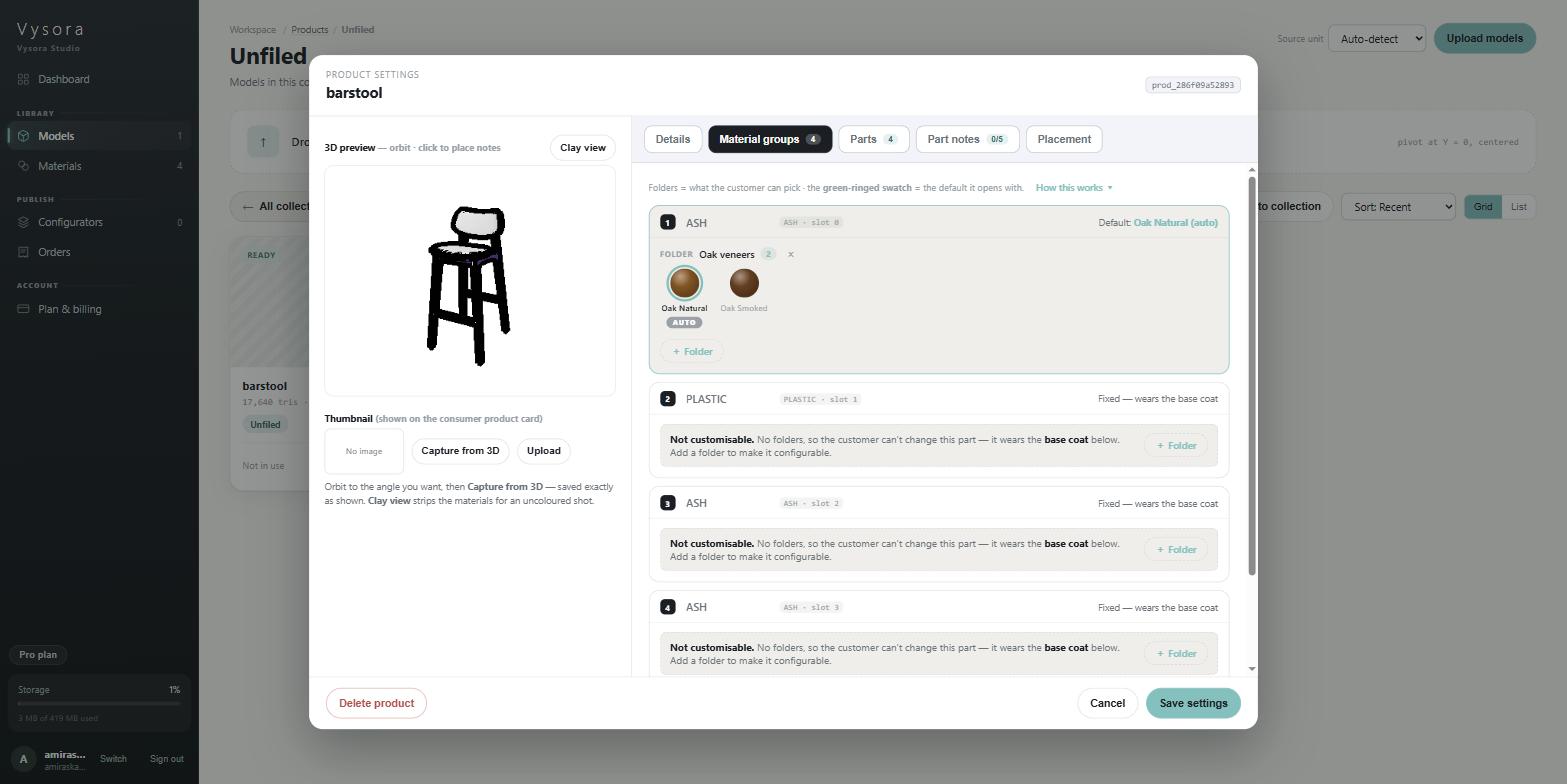
One sentence that lets you hold all three: the folder is the set of swatches, the zone is the part of the model that wears them, and Material group is what Vysora calls the place where the two are joined — both the product settings tab that joins them and the configurator node that shows the result to the customer.
Configurators
A configurator is a menu tree over your products and materials. It is what you publish, and what a customer actually uses.
The tree is built from three node types:
| Node | Chip | What it is |
|---|---|---|
Group (submenu) |
GROUP |
A category holding other nodes — a step in the player |
Product |
PRODUCT |
One 3D model. Add several to offer a choice |
Material group |
MATERIAL |
A swatch step for one part, filtered by folder |
Only Group (submenu) nodes can hold children; everything else is a leaf. A Material group node offers whichever folders you select on it, and appears to the customer only when a placed model has a part assigned to one of those folders. That is another way the zone mapping decides what the customer sees.
There is no save button in the builder. Edits autosave about a second after you stop typing, and the chip beside the name reads DRAFT · autosaved. The preview panel in the middle renders the last published version, not your draft, so nothing you do in the builder appears there until you publish again.
Variant swap and Toggle appear in the node picker but are not available yet.
Showroom and Atelier only
Exploded view, consumer part show/hide, taglines on hover and the display-size override exist only on those two lines, and a Showroom or Atelier configurator holds exactly one product — you create another configurator for the next product. The Studio line trades those for multiple products per configurator, with placement and snapping.
Publishing and versions
Publishing takes a snapshot. It bundles the current draft, the products it references and the materials they use into an immutable version — v1, then v2, and so on — and points the live link at it.
Two consequences follow, and between them they explain most "why hasn't my change appeared" questions.
The link never changes. Every version is served from the same player URL and the same embed code. Once the iframe is on your site you never touch it again; republishing updates every page carrying it, in place. There is no version history and no rollback in Studio, so the way back from a bad publish is to fix the draft and publish again.
Nothing reaches customers until you republish. Edits to a product, new or changed materials, your logo and business details, a deleted product's stale reference: none of them reach a live configurator until you publish it again.
Unpublishing is available from the configurator card in the list, never from inside the builder. It stops the embed link being served and frees the published slot, and it is also what you do before deleting a configurator — the Delete button is hidden while one is published.