Your workspace, plan and branding
Switch between workspaces, set the logo and business details that appear on customer quotes, and read your plan's usage meters and limits.
Three things sit outside the day-to-day work of building configurators: which workspace you are in, what your customers see of your brand, and what your plan allows. All three are reached from the bottom of the Vysora Studio sidebar.
Workspaces and product lines
Every time you sign in, Studio shows the workspace picker — Welcome back., then Choose a workspace. It appears even when your account owns exactly one workspace.
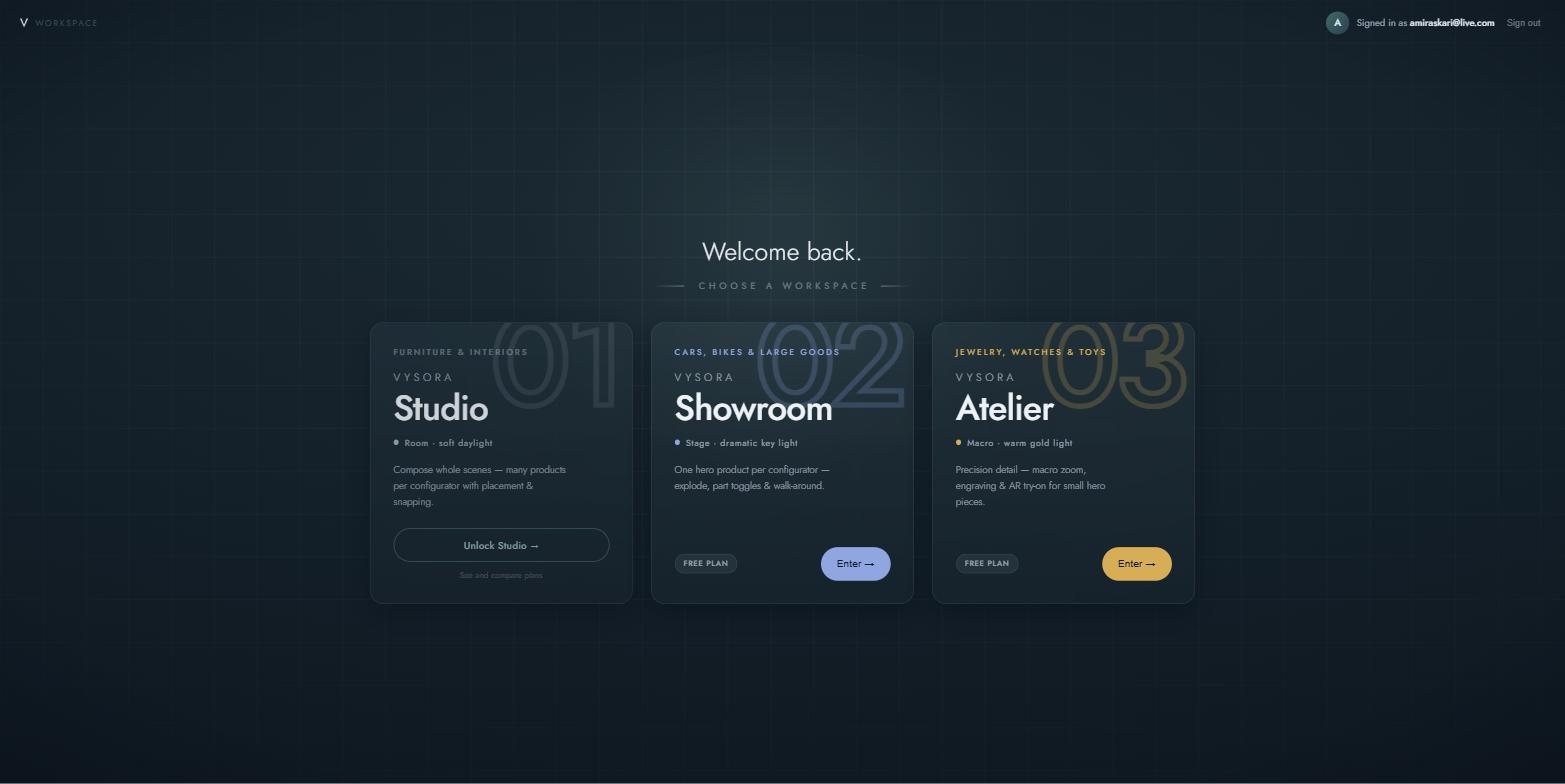
A workspace belongs to one of Vysora's three product lines, and the line decides how the product behaves:
| Line | Suits | What it does differently |
|---|---|---|
| Vysora Studio | Furniture and interiors | Compose whole scenes — many products per configurator with placement & snapping. |
| Vysora Showroom | Cars, bikes and large goods | One hero product per configurator — explode, part toggles & walk-around. |
| Vysora Atelier | Jewelry, watches and toys | Precision detail — macro zoom, engraving & AR try-on for small hero pieces. |
A line you own shows a plan pill (Free plan, Starter plan or Pro plan) and an Enter → button; the whole card is clickable. A line you do not own is dimmed, with a full-width Unlock Showroom → button and the caption See and compare plans. That button opens the Vysora website in a new tab, where lines are bought.
Each line is billed separately. The pill on each card is that workspace's own plan, so your Studio card can read Pro plan while your Showroom card reads Free plan. There is no single account-wide plan.
To move between workspaces once you are inside one, use Switch in the sidebar footer. It only appears when your account owns more than one workspace. With a single workspace there is nothing to switch to, and the picker still greets you at your next sign-in.
After you buy a new line, reload Studio. The new workspace appears in the picker once the page has reloaded and your session has picked up the change.
Brand & business
Click the avatar at the bottom of the sidebar (the tooltip reads Upload brand logo) to open the Brand & business dialog. Two separate things live here, and both reach your customers.
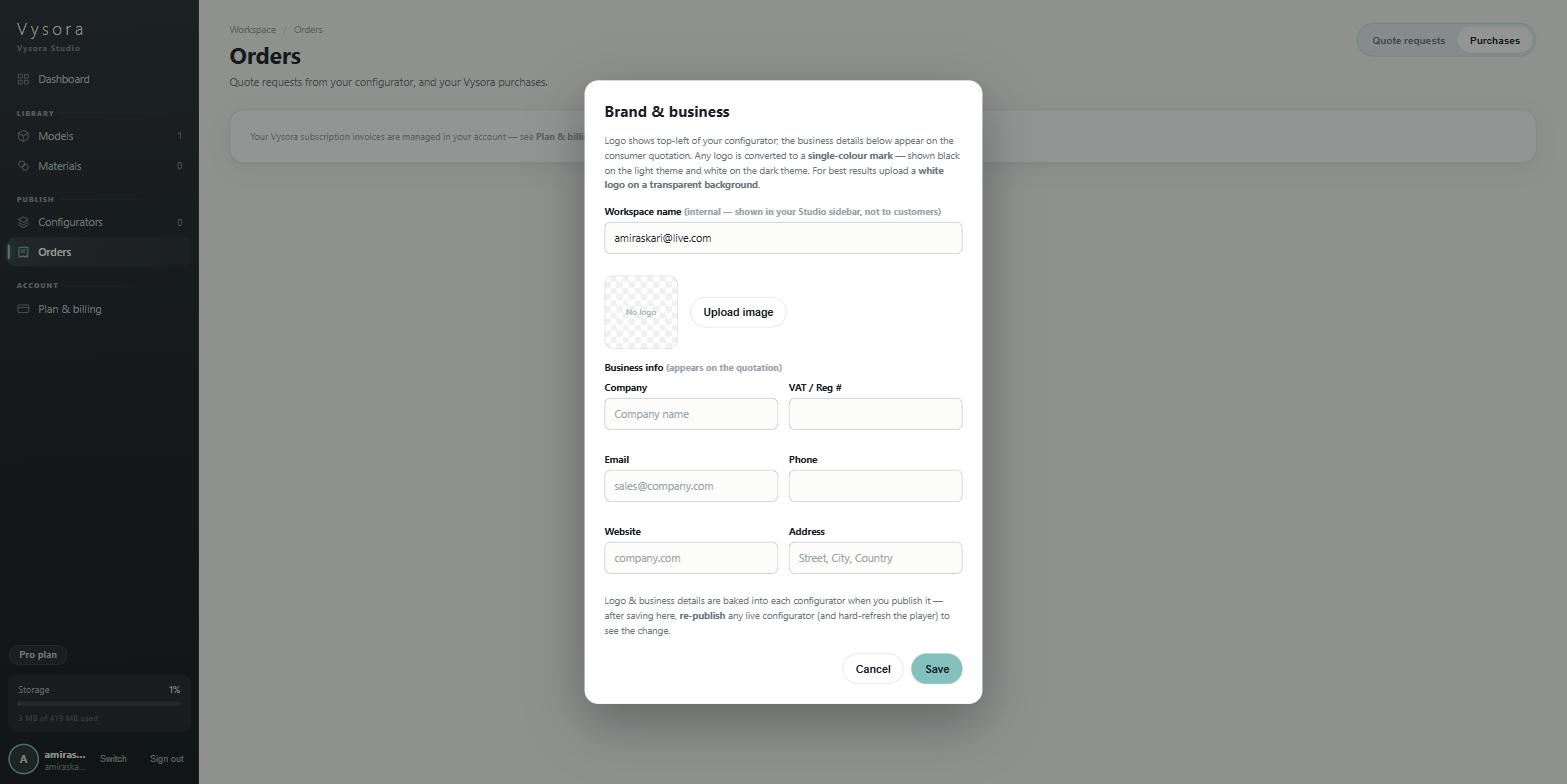
Workspace name is the exception: it is marked (internal — shown in your Studio sidebar, not to customers). Change it freely.
The logo
The logo appears at the top left of your published configurator and on the quotation your customer receives. Upload a PNG, JPG or WEBP with Upload image.
The dialog says the same thing in its own words: Any logo is converted to a single-colour mark — shown black on the light theme and white on the dark theme. For best results upload a white logo on a transparent background.
Take that last sentence seriously. A white logo on a transparent background gives the cleanest result, because the transparency already describes the shape and nothing has to be guessed. If your source is dark ink on a white background, Studio derives the shape from the dark areas, which usually works but can thicken or fill fine detail. If the mark comes back wrong, re-export it white-on-transparent before trying anything else.
When the conversion succeeds the dialog confirms: Converted to a white logo ✓ — shows black on the light theme, white on the dark theme. The preview box is deliberately shown on a dark background, because the stored logo is the white version.
Business details
Beneath the logo, Business info is marked (appears on the quotation): Company, VAT / Reg #, Email, Phone, Website and Address.
These are printed on the itemised quotation a customer receives after submitting a quote request, so they are how a stranger identifies, checks and contacts your company. Fill in as many as apply. See Quote requests for what happens once a request arrives.
Saving, and the step people miss
Save stores the change and confirms with Saved ✓ — now re-publish your configurator to apply it. The dialog then closes itself after a moment.
Closing the dialog by clicking the dimmed background discards your changes without asking. Use Save.
Plan & billing
The Plan & billing item in the sidebar, and the plan pill next to it, both open the same screen: Your current plan and usage. Subscriptions and payment are managed on your Vysora account — changes there sync here automatically.
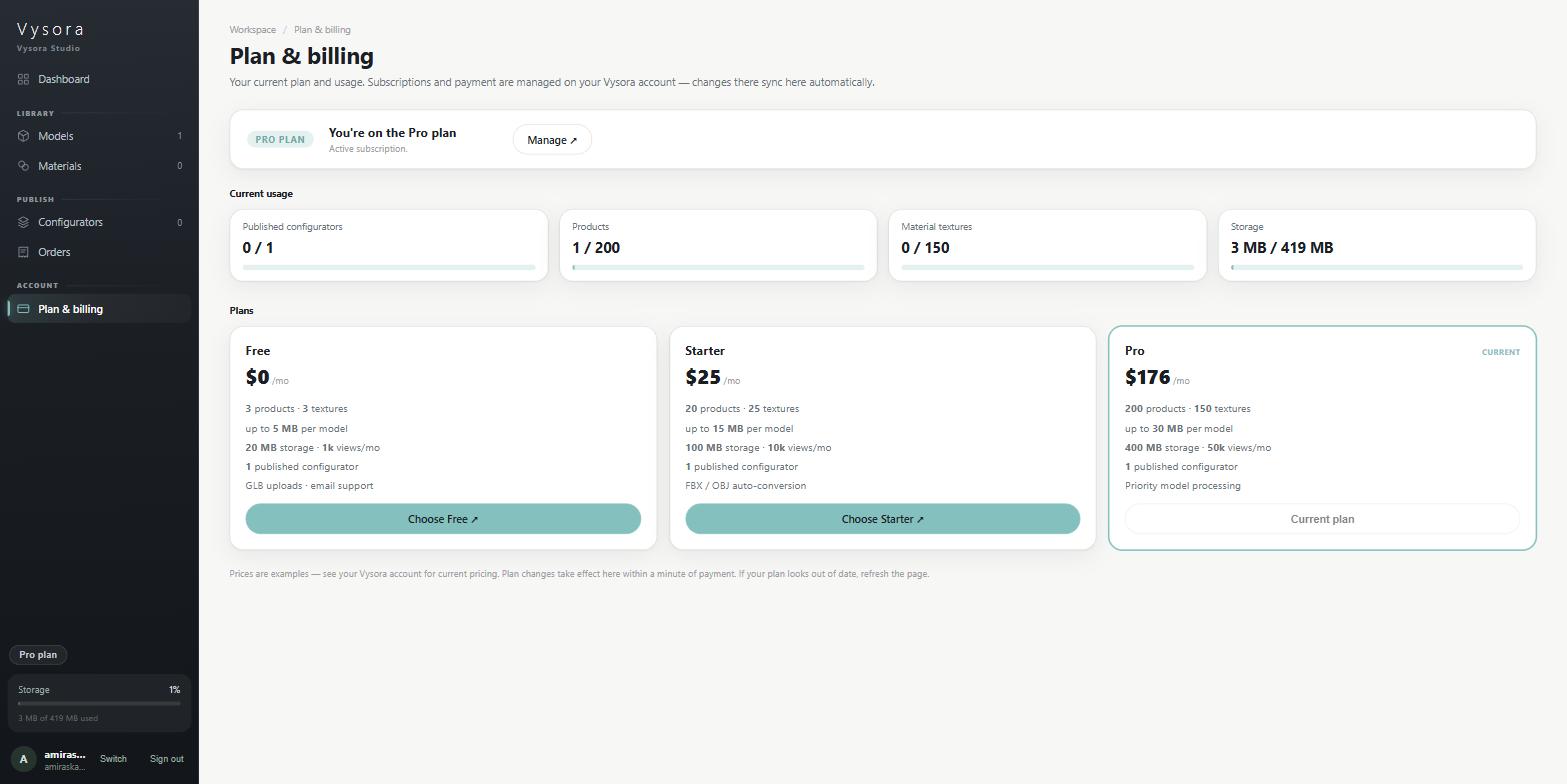
The card at the top names your plan and, where there is a subscription, how it is billed — for example Billed every month · renews / expires 11 Sep 2026. A Free workspace reads Free plan — no subscription.
Where billing actually happens
Studio does not take payments and cannot change your plan. Upgrade plan ↗ and Manage ↗ both open your Vysora account in a new tab, and that is where subscriptions are started, changed and cancelled. (Upgrade plan ↗ is hidden once you are on Pro, since there is nothing above it to move to.)
Changes made there sync back into Studio automatically, within about a minute of payment. If your plan still looks out of date after that, reload the page. Studio picks up the new plan on load, the same as it does for a newly bought product line.
The usage meters
Current usage has four meters, each reading <used> / <limit>:
| Meter | What it counts |
|---|---|
Published configurators |
Configurators currently published. Unpublishing one frees the slot immediately. |
Products |
Every model in your library, whether or not it is used in a configurator. Deleting a model frees a slot. |
Material textures |
Materials that have a base-colour texture file. A plain-colour swatch with no texture does not count against this. |
Storage |
The total size of your models — both the processed files Vysora generates and the originals you uploaded. |
What each plan allows
| Free | Starter | Pro | |
|---|---|---|---|
| Products | 3 | 20 | 200 |
| Material textures | 3 | 25 | 150 |
| Storage | 20 MB | 100 MB | 400 MB |
| Views per month | 1k | 10k | 50k |
| Max upload per model | 5 MB | 15 MB | 30 MB |
| Published configurators | 1 | 1 | 1 |
Showroom and Atelier only
On those two lines the published-configurator allowance is different: 1 on Free, 5 on Starter and 25 on Pro. Everything else in the table is the same. It matters more there than on the Studio line, because a configurator on Showroom or Atelier holds exactly one product — so the number of configurators you can have live is the number of products you can have live.
The per-model upload cap is the limit you are most likely to meet first, and it is enforced at the moment you choose a file, with a message naming the file's size, your plan's cap and the next tier's cap. Storage, product count and texture count are enforced when you upload as well.
Prices are shown on the plan cards in Studio, but the screen labels them as examples and says so itself: Prices are examples — see your Vysora account for current pricing. Check the Vysora account site for what a plan actually costs before you commit to anything.