What Vysora needs from a model
Formats, size caps, units and pivot rules every model must meet before upload to Vysora Studio, and what survives processing.
Vysora Studio takes your export, converts it to GLB if it is not already, checks it against a fixed set of rules, optimises it, normalises it to metres and writes three files: the model and two levels of detail.
What the customer can recolour is decided entirely by what you export; nothing in Studio can add a recolourable part your file does not contain. This page is the contract. Meet it and the rest of the track is detail.
Accepted formats
Three extensions are accepted: .glb, .fbx and .obj. The format is read from the filename extension, so an FBX renamed to .glb is rejected at the first check. Anything else is refused before the upload starts, with the message Accepted formats: .glb, .fbx, .obj.
.gltf — the JSON file with a separate .bin and loose textures — is not accepted. Uploads are single-file, so export binary glTF instead.
GLB — the one to use
A .glb is used as-is. Nothing is reinterpreted on the way in: material slots, their order, node names, mesh names and embedded textures arrive exactly as your exporter wrote them. Every statement on How material zones work is most reliably true of GLB.
Export GLB unless you have a reason not to.
FBX — converted, usually faithfully
An .fbx is converted to GLB server-side before anything else happens. Embedded materials and textures survive to the degree the converter preserves them. A successful conversion says nothing about what it changed, so check the zone list in Studio afterwards.
Two ceilings apply. Conversion gets five minutes, so a very heavy FBX can time out even while sitting under your size cap. The whole intake — convert, validate, optimise, build levels of detail, write — gets nine. Neither bites at furniture scale, but they are why an enormous scene can fail without a specific complaint.
OBJ — geometry only
File size
Two caps apply, and the smaller one is your plan's.
| Plan | Per-model upload cap |
|---|---|
| Free | 5 MB |
| Starter | 15 MB |
| Pro | 30 MB |
| Enterprise | 100 MB |
Above every plan sits a 200 MB platform ceiling, quoted as File exceeds the 200 MB platform upload limit. In practice you meet your plan's number first:
File exceeds your plan's 30 MB per-model limit. Upgrade or optimize the model.
The dropzone shows your own cap as max {N} MB each. Almost all of a furniture GLB's weight is textures, so start there: Size, triangles and textures covers how to get under the number without losing the model.
Units: metres are canonical, and you must declare yours
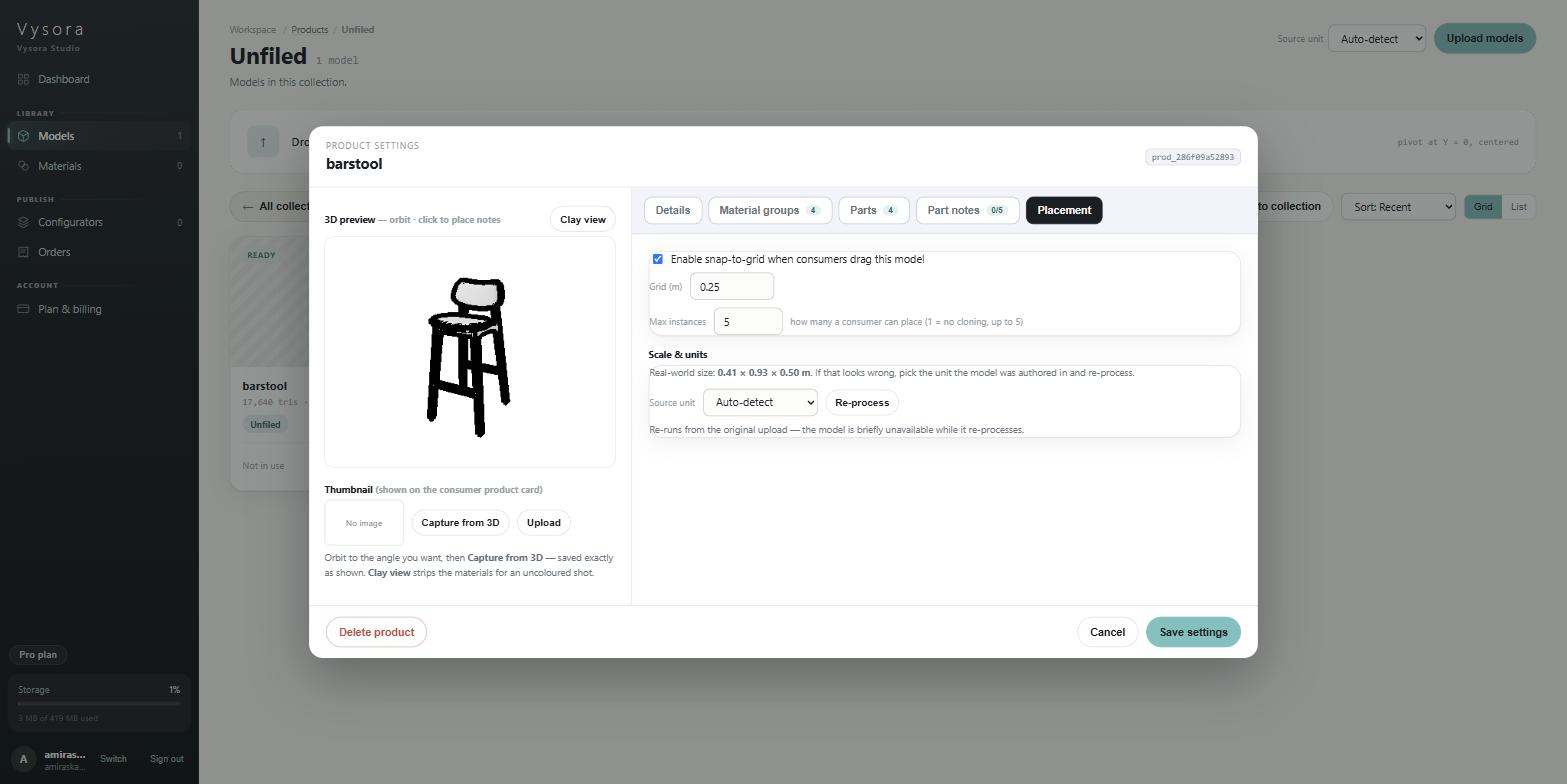
Vysora stores and publishes everything in metres. The snap grid the customer drags against defaults to 0.25 m; the dimensions they see, camera framing and note anchors are all metres. There is no runtime scale correction, so a model that arrives at the wrong size is wrong everywhere downstream at once.
On upload you pick a Source unit: Auto-detect, Meters, Centimeters, Millimeters or Inches. Vysora scales the whole model to metres from that.
A model that does come in at the wrong size is fixable without re-exporting. Set the correct Source unit on the product and press Re-process. It re-runs from the original upload, so scale never compounds however many times you correct it.
Pivot at Y = 0
Export with the model's base sitting on the floor plane, pivot at the origin, Y-up. The upload panel repeats this as pivot at Y = 0, centered.
If the base is more than 5 cm off the floor you get a warning:
Model base is 0.12 m from the floor (pivot not at Y=0) — it would float above the ground. The player auto-grounds it, but export with the pivot at floor level for exact placement.
Auto-grounding stops the customer seeing a sofa hover in mid-air. It does not make the offset harmless: placement, snapping and the camera all work from the model's own origin, so an object whose pivot sits in its centre or at one corner behaves oddly when dragged.
What survives processing, and what does not
Every model, regardless of size, is run through the same three transforms: duplicate data is merged, unused data is removed, and coincident vertices are welded.
| Survives | Changed or removed |
|---|---|
| Mesh geometry at full triangle density | Coincident vertices are welded together — shading can shift across hard edges that were split only by duplicated vertices |
| Node and object names — these become your zone names | Byte-identical accessors, meshes, materials and textures are merged |
| Material slots and their order — this is your zone order | Unused nodes, materials and textures are removed |
| UV sets, including on materials with no texture | Draco compression is decoded and not re-applied, so a Draco file gets larger |
| Normals, or generated ones if absent | Anything referenced by external URI — textures must be embedded |
| Embedded textures up to 4096 px | .mtl and image sidecars alongside an OBJ |
Nothing is decimated and no texture is resized. Over the triangle or texture limit the model is rejected, not reduced. Two lower-detail versions are generated alongside the full model and used for loading and distance, so the customer never downloads the full mesh first.
Checklist before you export
- One material per part the customer should be able to recolour. This is the whole game — see How material zones work.
- Every object named, and named uniquely.
seat,legs,frame, notObject001and not nothing. - Material slot order settled and frozen. Slot order is the zone address; reordering after the client has built a configurator re-addresses every zone.
- Pivot at the origin, base at Y = 0, Y-up.
- Model at real-world size in one known unit. Remember which unit — you declare it at upload.
- Under 500,000 triangles, no texture over 4096 px, all textures embedded.
- Under your plan's MB cap.
- Exported as GLB. FBX if you must. OBJ only for a single-material object.
When it comes in wrong anyway, My model came in wrong starts from the symptom.